Posts gesorteerd op relevantie tonen voor zoekopdracht jAlbum. Sorteren op datum Alle posts tonen

07 augustus 2015

How to process pictures in subdirectories in jAlbum with the FancyBox, the Slide Show 4 or the PhotoSwipe skin.

Both the Slide show 4 skin, the FancyBox skin and the PhotoSwipe skin allows you to display pictures in subdirectories of the main image directory as sub-albums which are opened via links on the main album at the top of the tree. 

I will discuss here 2 methods, in two examples. I use in both cases the same directory structure: a root directory which contains the images of the top album and contains also all folders with additional albums, both for the image directory and for the output directory. The jAlbum project files are saved in the image directories.

Before version 3.1 of the Slide Show 4 skin, the main album did stay open if you opened a folder-album, so that possible music started in the top-album did continue as a folder-album was opened. With the start of version 3.1 and with the PhotoSwipe skin, the folder-album is opened in the same window as the top album. This means of course that background music played by an audio control in the top album is stopped if the folder-album is opened. To prevent that the music stops if you open a folder-album, the music can be played in a new Music.htt web-page, which runs in a separate window.

There are 3 ways to create a such a tree of albums, via one jAlbum project file for all subdirectories in the top window, with for each directory a jAlbum project file which is saved in the corresponding directory or with an Album of albums via weblocations (requires jAlbum version 14).

1. One project file for all albums.

In the first case you have to set the 'Process subdirectories' and 'Include subdirectories in index pages' check-marks in the jAlbum Advanced / General settings:

If you check the 'Chain directories' check-mark (requires jAlbum version 12.2 or later version and Slide Show 4 skin version 2.1 or later version, with PhotoSwipe in all versions), you can use the the green arrow buttons on top of an index page to open the album in the next / previous directory of the tree.

In the second case, if you use a set of project files to generate the albums, you should not check these check-marks.

Using one project file is of course the fast method to generate a tree of albums, but it has a number of disadvantages:

1. The thumbnails and slides of all albums do have the same dimensions, because the settings on the jAlbum Images / General tab are applied in all sub-albums.
2. If you use fixed shape thumbnails they will be used in all albums, it is not possible mix albums with fixed shape and non fixed shape thumbnails
3. The number of thumbnails columns is the same in all albums, except if you set check-mark 'Variable number of thumbnails per row' on the index page settings.
4. If the html code text-box contains html code, it is only executed for the top index page.
5. The button links defined on the Slide Show 4 Links tab are only displayed on the top index page. If you check check-mark 'Show these buttons too if subdirectories are processed' they will also be displayed on sub-albums, but it is not possible to use in that case different links for different albums. This is mostly not a big problem. However if you use as links in your sub-albums the same file for instance more_info.html, the link will only be displayed if such a file exist in the sub-directory. The contents of file more_info.html can of course be different for each subdirectory.
6. It is not possible to use for each sub-album a picture in the slides directory as theme image. If you like to do that you should use in each sub-directory an include file page-header_2 with a contents like this:
<div class="themeImage">
    <img src="slides/150619-125959_Norrfallsvikken-7.jpg" style = "width:100%" alt=""  ></div>
However it is also possible to enter in the the 'Theme image' field a string like 'theme_image.jpg' and save the theme image under that name in the root- and each sub-directory of the output destination directory. No theme image will be displayed if this file is not found.

 To enter the Title and/or Description of a sub-album, click with the right mouse button on the folder which contains the pictures of the album and select in the menu 'Edit':

Next you see this window:

Enter the title in the Title field at the right site and enter the description in the comment field below the folder image.

For an example of an album made by one project file click here  and to see the same tree of albums made by 13 project files click here 

The Slide Show 4 index page settings of the first album contains the next parameters:

You see here that it is possible to give the border folder thumbnails a special color, so that you see better the difference with normal image thumbnails.

If the top album index page contains slide picture thumbnails and thumbnail folder icons, the thumbnail folder icons are displayed in a second table of  thumbnail folder icons after the slide picture thumbnails of the top album:

However it is the responsibility of the album creator that the folders are located after all normal images in the jAlbum Explore. 


2. A project file for each folder album

This is only possible with the Slide Show 4 skin,It is sometimes easier and more flexible to use a separate project file for each directory where you define this information for each subdirectory in the corresponding project file. You are in that case free to chose for each album the optimal dimensions and shape of the thumbnails and the slides and the number of thumbnails columns.

If you do this, there are 3 points important:

1. In the Album settings Advanced / General tab, you should clear check-marks Chain directories, Process subdirectories and Include subdirectories in index pages.


2. For each project file in a subdirectory, you should fill the same link address '../index.html' in the 'Parent page URL' field on the Slide Show 4 Links tab:


3. The links to the albums in the folders should be defined in the html code text block on the Slide Show 4 Index page tab of the top window:
In this example the links are displayed as 2 horizontal menu bars at the bottom of the index page of the top album:

The CSS code is standard available in the common.css file in the res directory, because the same code is used for the top menu you see at the top of the index page. This menu is defined at the links tab:

After you created the whole tree of albums you should upload it to the jAlbum website via the jAlbum project file of the top album (or use a FTP program to transfer all output directories to your own web server).

Creating such a tree is rather simple:
  • First make the root album in the top directory.
  • Next copy the resulting project file JalbumSS4.jap to the first subdirectory, edit that file in jAlbum by adding the link to the root, edit the output directory, browse to the theme image, change the thumbnails size is useful etc. and make the first folder album.
  • Next copy that file to the 2nd folder and change at least the output directory and I make the album.
  • Do the same for the other folder albums.
  • Finally open again the top album and upload it to the server. The albums in the folders are automatically uploaded with the top album.


With the information supplied by jGromit, see this thread on the jAlbum forum, you can save time by doing this with a batch file.

In the root directory I created a batch file RebuilFolderAlbums.cmd with the following contents:

cd "D:\Users\Public\Pictures\Texel\TopWindow\0-Zuiden_W2010_09_04"
java -Xmx800M -jar "C:\Program Files\jAlbum\JAlbum.jar" -projectFile "JalbumSS4.jap" -appendImages
pause
cd "..\1-Geul_W2011_09_29"
java -Xmx800M -jar "C:\Program Files\jAlbum\JAlbum.jar" -projectFile "JalbumSS4.jap" -appendImages
pause
cd "..\2-Hors_20140606-09_Mokbaai"
java -Xmx800M -jar "C:\Program Files\jAlbum\JAlbum.jar" -projectFile "JalbumSS4.jap" -appendImages
pause
cd "..\3-20140608_Bollekamer"
java -Xmx800M -jar "C:\Program Files\jAlbum\JAlbum.jar" -projectFile "JalbumSS4.jap" -appendImages
pause
cd "..\4-Dennen_W2011_10_02"
java -Xmx800M -jar "C:\Program Files\jAlbum\JAlbum.jar" -projectFile "JalbumSS4.jap" -appendImages
pause
cd "..\5-20140602_Alloo"
java -Xmx800M -jar "C:\Program Files\jAlbum\JAlbum.jar" -projectFile "JalbumSS4.jap" -appendImages
pause
cd "..\6-Bleekerij-20130401"
java -Xmx800M -jar "C:\Program Files\jAlbum\JAlbum.jar" -projectFile "JalbumSS4.jap" -appendImages
pause
cd "..\7-20140604_Oudeschild"
java -Xmx800M -jar "C:\Program Files\jAlbum\JAlbum.jar" -projectFile "JalbumSS4.jap" -appendImages
pause
cd "..\8-Muy_W2011_09_27"
java -Xmx800M -jar "C:\Program Files\jAlbum\JAlbum.jar" -projectFile "JalbumSS4.jap" -appendImages
pause
cd "..\9-Slufter-Muy_W2011_10_01"
java -Xmx800M -jar "C:\Program Files\jAlbum\JAlbum.jar" -projectFile "JalbumSS4.jap" -appendImages
pause
cd "..\A-Slufter"
java -Xmx800M -jar "C:\Program Files\jAlbum\JAlbum.jar" -projectFile "JalbumSS4.jap" -appendImages
pause
cd "..\B-NoordenF2011_09_30"
java -Xmx800M -jar "C:\Program Files\jAlbum\JAlbum.jar" -projectFile "JalbumSS4.jap" -appendImages
pause

Double click on file  RebuilFolderAlbums.cmd to make all albums in the folders. Next build in the usual way the root album directly with the jAlbum program and upload the album in the root. Because the other albums are in sub-folders of the root, they are automatically uploaded with the root album. 
You see the result here.

The music is in both examples played in the Music.htt web-page, but there is one difference: the link to this music web pages is in the first example showed in the menu of all albums, but in the second example only in the menu of the top album.

3. With weblocations


This requires jAlbum 14 and the latest versions of the PhotoSwipe and Slide Show 4 skin. 

It is a simple method: First open all the sub-albums from internet in your browser. Next start a new album, check the check-mark 'This is an album of albums' on the General settings tab of the skin and drag the button left of the URL  text-box in your browser into the jAlbum Explorer window.
Enter the title and possible comment for each album and Make the Album of Albums.

See also the PhotoSwipe Album of albums or the Slide Show 4 Album of albums example.

Click here to download and install newest version of the Slide Show 4 skin and click here  to open the Slide Show 4 skin manual.


06 juli 2017

De presentatie van foto’s met jAlbum.

Het jAlbum programma


De laatste jaren presenteer ik mijn foto’s met het programma jAlbum. Dit programma maakt het mogelijk om webpagina’s te maken voor het presenteren van foto’s.

Het programma bestaat uit een kern gedeelte dat zorgt voor de omzetting van de oorspronkelijke foto’s in hoge resolutie naar JPEG files van dezelfde foto’s in een lagere resolutie voor publicatie op een website server. U geeft daarvoor op waar de oorspronkelijke foto’s staan, in welke folder de webpagina’s gezet moeten worden, de maximale afmeting van de wegpagina foto’s, de te gebruiken kwaliteit bij de omzetting etc. Omdat ik graag grote foto’s wil zien geef ik tegenwoordig als maximale resolutie de HD norm op: 1080x1920 en om de files niet te groot te laten worden gebruik ik een kwaliteit van 50% voor de omzetting. Dat is meestal voldoende. (De meeste oudere albums op mijn site zijn gemaakt met de resolutie 1024x1024 en 50% kwaliteit).

U geeft een titel voor de presentatie op en desgewenst een beschrijving. Ook geeft U op waar eventueel een beschrijvende tekst per foto opgehaald kan worden. Ik gebruik daarvoor uitsluitend de ‘EXIF image descriptor’, die ik vul met mijn programma EditPhotoInfo: het ‘Bijschrift’ venster rechts onder in het Viewer venster.
Omdat ik tegenwoordig het RAW formaat gebruik voor mijn foto's vul ik dat veld tegenwoordig meestal in het Adobe  Lightroom programma, waarmee ik mijn foto's bewerk en converteer naar het JPEG formaat dat jAlbum gebruikt.
Meestal kunt U ook aangeven of U muziek tijdens de presentatie wil laten afspelen, waarbij U zelf de MP3 files moet aanleveren.

Het uiterlijk van een presentatie kiest U door een Skin te kiezen in het jAlbum programma. Er zijn zeer veel skins gemaakt, die U kunt downloaden van de jAlbum website. Die skins kunt U soms heel gemakkelijk zelf aanpassen aan Uw behoeften.

Ik vind dat een presentatie vooral moet gaan over de foto’s zelf en heb daarom een voorkeur voor skins die de foto’s zo groot mogelijk laten zien zonder storende teksten en plaatjes rond de foto. Bovendien vind ik dat de foto’s in een Dia Show getoond moeten worden, zodat er weinig interactie nodig is en je de foto’s bijvoorbeeld via internet op een HD TV moet kunnen laten zien.

Ik gebruik momenteel mijn ‘Slide Show 4’  skin, de opvolger van mijn ‘Improved slide Show 3’ skin. Daarnaast gebruik ik mijn recent ontwikkelde PhotoSwipe  and FancyBox skins.

Als U zich registreert op de jAlbum site en een licentie koopt dan krijgt U ruimte op de jAlbum server waar U Uw presentaties kunt neerzetten. Het uploaden en onderhouden van die site gaat geheel via het jAlbum programma en is zeer eenvoudig te bedienen. U kunt de presentaties ook op een eigen server zetten, maar dan moet U Uw album met een FTP-programma uploaden en kunt U gebruik maken van een goedkopere licentie om van een reclame boodschap in Uw album af te komen. Met de nieuwste versie van het jAlbum programma kunt U dat ook doen met het ingebouwde FTP-programma, wat ik tegenwoordig meestal gebruik.

Mijn jAlbum skins.


De Slide Show 4 skin is een verbeterde versie van de eerste jAlbum Slide Show skin. Ik heb die wat verbeterd en aangepast aan mijn wensen. U kunt deze skin downloaden vanaf de Jalbum site waar ook een beschrijving gegeven wordt. Voorbeelden van albums gemaakt met deze skin zie U hier.

De PhotoSwipe skin heb ik weer afgeleid van de Slide Show 4 skin, waarbij de dia show vervangen is door de PhotoSwipe JavaScript gallery ontwikkeld door Dmitry Semenov. Voorbeelden van albums gemaakt met deze skin zie U hier.

De aanpassingen die ik toegevoegd heb hebben betrekking op het laten zien van de routes die we gelopen of gefietst hebben. Die routes worden met een GPS ontvanger opgenomen. U kunt de routes bekijken op een kaart in Google Maps en Google Earth. Er wordt ook aangegeven waar de foto’s gemaakt zijn en als U op een WayPoint (ballon of fototoestel icon) klikt dan krijgt U de foto ook te zien vanuit de kaart. Aan het einde van dit artikel wordt aangegeven hoe dit toegevoegd wordt.

Deze skins zijn aangepast om de albums beter op een iPad te kunnen zien en bedienen; U kunt daar gebruik maken van een touch interface. Er zijn overgangs effecten bij het wisselen van de dia's ingevoerd. Er wordt slechts één html file gebruikt; door het ontbreken van slide page html files is de code compact en zijn er geen flikkeringen bij het wisselen van de dia's.

Samen met jAlbum versie 12-14 is het mogelijk om ook video's in een album op te nemen. Een voorbeeld van een album met video's en foto's zie U hier. 

Het toevoegen van GPS informatie.


Met een GPS ontvanger kunt U zien wat de coördinaten (lengte- en breedtegraad) zijn van de plaats waar U staat als U bijvoorbeeld een foto neemt. Op mijn GPS pagina kunt U meer informatie vinden over de werking van een GPS. Veel GPS ontvangers kunnen tijdens het lopen of fietsen de route opslaan in een tracklog file. De GPS slaat dan voor elk punt waar men geweest is, het tijdstip, de lengtegraad en de breedtegraad op in de tracklog file.

Als U een foto neemt slaat de camera ook het tijdstip waarop de opname gemaakt is op bij de EXIF gegevens van de foto. Door datzelfde tijdstip op te zoeken in de tracklog file kan men de lengtegraad en de breedtegraad van de camerapositie ophalen en opslaan bij de EXIF gegevens.

Dit proces kunt U automatisch uitvoeren met mijn programma EditPhotoInfo programma door daar op de knop 'Tracklog' te klikken.

De files die gebruikt worden voor Google Map en Google Earth worden ook door het EditPhotoInfo programma gemaakt., maar U kunt daarvoor tegenwoordig beter mijn MakeMap programma gebruiken. Eerst haalt U daarvoor de coördinaten waar de foto’s gemaakt zijn uit de GPS tracklog file met programma EditPhotoInfo of met het Adobe Lightroom programma. Daarna maakt U de jAlbum presentatie met de Slide Show 4  of de  PhotoSwipe skin. Als U daarna in EditPhotoInfo het vierkantje 'Gebruik foto's van de website' aanvinkt en op 'Maak file' knop drukt, dan zal er een Google Earth file map.kml gemaakt worden in de hoofdmap van de jAlbum presentatie met voor elke foto die coördinaten bevat een waypoint die aangeeft waar de foto gemaakt is. Wordt die file geopend in Google Earth of Google Maps en klikt U daar op zo een waypoint, dan wordt de foto zelf ook getoond. Klik op het album voorbeeld hierboven op het zwarte vierkantje met de aarde in het midden om daarvan een voorbeeld te zien.

Als er een waypoints file gemaakt is, dan kunt U daarna op de 'Waypoints' knop klikken om de waypoints in Google Earth te bekijken. Heeft U ook de GPS tracklog file met mijn programma ConvertTrack omgezet in een KML file, dan kunt U ook die file in Google Earth zichtbaar maken en daar opslaan in dezelfde map als de Waypoints en het resultaat via 'Plaats opslaan als...' als map.kmz of map.kml file opslaan.  Klik op de rechter werelbol in het midden in  in dit voorbeeld album  om een voorbeeld in Google Earth te zien.

U kunt de waypoints en track ook in Google Maps laten zien. Dat gebeurt in de browser, er is geen speciaal programma voor nodig. U moet daarvoor de URL van de kml file in het zoekvak bovenin Google Maps zetten en daarna op de 'Zoeken in Maps' knop rechts van dat vak klikken. De links naar die pagina krijgt U te zien door rechts op de 'Link' knop te klikken. Klik in dit voorbeeld album  op de linker wereldbol om hetzelfde voorbeeld in Google Maps te zien. De link in dit voorbeeld is in het MakeMap programma gemaakt, maar het resultaat is hetzelfde.

Daarnaast is er in de Slide Show 4 skin een voorziening om door (360°-) panorama foto's  te kunnen scrollen.

Recept voor het maken van een Slide Show 4  of PhotoSwipe album

Voor het maken van een album voert U de de volgende acties in deze volgorde uit:
  1. Als U een GPS track van het album heeft voeg dan de GPS locaties aan de foto's toe door eerst de foto map te openen met de knop 'Open...' en daarna op de knop 'Tracklog..' te klikken.
  2. Als U panorama foto's heeft gemaakt, stel die dan nu samen met een stitching programma, b.v. Autopano pro of in Adobe Lightroom.
  3. Open de viewer en verwijder de minder fraaie foto's. Voeg bijschriften voor onder voor de foto's in.
  4. Wijzig desgewenst de foto namen etc. door op de knop 'Wijzig file data' te klikken.
  5. Genereer het album met het jAlbum programma, waarbij U links onder 'Skin en stijl' de Slide Show 4 of PhotoSwipe skin selecteert. Pas de parameters bij de instelling aan naar Uw wensen voordat U het album maakt, meer info in de Slide Show 4 / PhotoSwipe skin handleiding.
  6. Door de laatste actie worden de album mappen en files gemaakt. Indien U een waypoints file gaat toevoegen die U ook met Google Maps bekeken moet worden, dan kunt U het link adres ophalen door op de knop 'Link' te klikken. Plak dat adres dan in het URL veld op de 'Links' tab van de skin instellingen in het jAlbum programma. Genereer het album dan nogmaals met het jAlbum programma. Zorg er vooraf voor dat in het Opties venster de juiste gegevens staan in de velden 'Lokale folder' en 'Externe URL'.  Tegenwoordig kuint U beter mijn Makemap programma gebruiken.
  7. Als de foto's GPS gegevens bevat en U wilt voor elke foto de locatie kunnen bekijken dan moet U bij de Slide Show 4 instellingen in het jAlbum programma het vakje 'Show location in Google Maps' aanvinken.
  8. Als U ook panorama pagina's in het album wil opnemen, open dan de poanorama foto in de jAlbum Explorer, klik rechts op het driehoekje 'Panoramic image' en vink vervolgens 'Panoramic image' aan ( en indien van toepassing het '360° panorama' hokje.
  9. Als de foto's GPS gegevens bevat en U wilt een waypoints file met alle camera locaties laten zien, vink dan in het EditPhotoInfo programma het vakje 'Gebruik foto's van website' aan en druk op de knop 'Maak file'. De file map.kml wordt dan in de index folder gezet. Zorg er vooraf voor dat in het Opties venster de juiste gegevens staan in de velden 'Lokale folder' en 'Externe URL'. Voeg in het Google Earth programma eventueel de GPS track toe aan de map.kml file en sla die file weer op in de index map.
  10. Zet het album op Uw website.
Voor meer informatie zie de on-line helpfile van programma EditPhotoInfo of de on-line helpfile van programma MakeMap.
U kunt programma EditPhotoInfo ophalen vanaf mijn download pagina.

22 september 2023

My biggest 3 jAlbum problems


My biggest 3 jAlbum problems


I am using the jAlbum software already 15 years for publishing the photos and routes of my walkings on my website.

It is an excellent program to do that, but in all those years I encountered a number of problems, which I did report in the jAlbum forum in the Features requests thread, but most of these requests were not implemented, because Jeff Tucker did not agree. In fact he did remove some of my requests and blocked my access to the forum. Therefore I will report the 3 most important problems which could have saved me a lot of times in this blog.

Jalbum uses absolute links instead of relative links.

I use at home a desktop computer to process my photos, but in my holidays I use a laptop computer to do that. To prevent that I have to copy files to my desktop and/or laptop after/before each trip I use a 2TB Samsung T7 SSD as external disk, which I connect via a fast USB-C port to my Laptop or Desktop.

If I connect the disk to my Desktop. It gets drive letter K: and the jAlbum Genral settings window shows:


The original RAW format photos are imported in K:\Users\Andre\Afbeeldingen\LightRoom_photos\ and after processing exported to K:\Users\Andre\Afbeeldingen\jALBUM\

With these settings I can make and upload an album op my desktop without problems, see my published album.


However if I connect the SSD to the laptop, it gets drive letter I: and the image directory field shows:

I:\Users\Andre\Afbeeldingen\jALBUM\Oostvaarderplassen\FancyBox

while the output directory still shows:

K:\Users\Andre\Documents\Mijn websites\andrewolff.nl\FotoSerie\Wandelingen\Oostvaarderplassen


Now jAlbum can't find the original images and the album can't be made. I can repair the images links, but if I do that, the album can no longer be made on my desktop.

It is no problem for LightRoom, without changing anything I can export my images to the \Users\Andre\Afbeeldingen\jALBUM\ directory, both on the Desktop and on the Laptop, because LightRoom uses relative links instead of absolute links.

My original Feature request for this problem has been deleted, see here.

I did request to use relative links, so that General setting window would show:


If the output directory is on another disk, you should see a drive letter in the Output directory field.


Problems with the Cache

If you change a simple thing like an icon or a color in an existing album and you preview the result in an external browser like Google Chrome, many times you do not see the new icon or color, but you still see the old icon and/or color.

Sometimes it took me a long time before I discovere the source of this problem:

It is caused by the Browser Cache, which still contains images of the old album. So to see all your changes correctly in the Preview, you have to empty the Cache before each preview.

Currently, if I see that the preview is incorrect, I copy the album path,  select the Incognito mode and drop the album path in the address field. In that case I always see the icon or color changes I made with the new settings.

So I did request to add a field in jAlbum to use a special browser or command switch for the preview.

ThisFeature request has not (yet?) been deleted. The owner and developer of jAlbum, David Ekholm, did find it initially a good idea, but later Jeff Tucker did not like this request, so it has not been implemented.

Prevent that the output folder contains an index.htm and an index.html file

I have seen many times that after the upload of an album, you see another display as showed locally in the preview. Many times it took me hours to discover the source of this problem:

In the Advance tab was Page extension '.htm' used, but the output folder did contain an old 'index.html' file. The 'index.html' file apparently gets a priority over an 'index.htm' file, so that is why you see a different album.

So I did this simple Feature request:

Delete automatically an 'index.html' file if the album contains an 'index.htm' file and delete automatically an 'index.htm' file if the album contains an 'index.html' file.

But again this simple request has not been implemented.

I have no longer access to the forum, so you will no longer see my new feature requests or Bug reports on the forum.


19 oktober 2023

How to enhance the Plain skin


Summary


In this jAlbum forum thread I showed how the Plain skin could show the location in a Leaflet OpenStreet map and in this thread I showed how the PhotoSwipe lightbox could be replaced by the LightGallery lightbox which is also used in my LightGallery skin.
Because my big friend Jeff Tucker blocked my access to the forum and removed all version information and jaskin files, I did publish new versions in the Plain-LG demo album and now I continued the reporting about the exercise here in this blog.
These modifications were done with a Plain skin version which used a  BeanShell GUI, but the current version 1.0.4 uses a compiled GUI, which requires the NetBeans program for changes.

So I investigated now how version 1.0.4 could be modified.
The result is a Plain_M version 1.0.4B which contains the following enhancements:
  1. The Thumbnails caption selection box has been copied to the Lightbox tab and can now be used to select a caption below the image in the lightbox.
  2. Thumbnails caption bug in Plain 1.0.4 repaired.
  3. If the API-key field is empty, a Leaflet OpenStreet map will be used to display the location.
  4. In the HEAD section code can be added via a file  page-header_0.inc in the image directory.
  5. The lightbox background color is equal to the index page background color.

This example album shows the result and allows you to download the the jaskin file used to make this album.

This album uses the following settings in the modified lightbox tab:


The caption box in the Thumbnails tab is empty.

The implementation 


First you copy the the Plain map from the standard jAlbum skin directory C:\Program Files\jAlbum\skins to a Plain-M folder in the directory used for skins made by volunteers C:\Users\Andre\AppData\Roaming\JAlbum\skins

Next you install NetBeans and JAVA tools as described in the thread Compiling a skin's user interface. Create a new project Plain-M as described in the thread.
Copy file Gui.java from directory C:\Program Files\jAlbum\skins\Plain\src\plain to the NetBeans src directory, in my case D:\Andre\Documents\NetBeansProjects\Plain-M\src.

For this version I copied in Netbeans the code of the caption selection boxes from the Thumbnails panel to the Lightbox panel and renamed the copied controls, for instance I renamed the thumbnailItems control into slideItems control.

I added also a label hintOSMLabel and added the corresponding text in the Plain-M text.properties file:

ui.hintOSM=To use an OpenStreet map, leave the next field empty

Translate this string to other languages via menu Tools / Translator / Update ALL skin translations (auto translate).

After compiling the changed  Gui.java file, you will find the corresponding Plain-M.jar file in folder D:\Andre\Documents\NetBeansProjects\Plain-M\dist. Move file Plain-M.jar to the skin directory C:\Users\Andre\AppData\Roaming\JAlbum\skins\Plain-M\lib and overwrite the existing file.

To see the modified Gui.java file, download the Plain-M.jaskin file and open after the installation folder C:\Users\Andre\AppData\Roaming\JAlbum\skins\Plain-M\src\plain.

Next edit in jAlbum the template files. All my changes are indicated as comments with the letters AW in the skin directory C:\Users\Andre\AppData\Roaming\JAlbum\skins\Plain-M.
Note that these template files uses a js-shell, so you should use javascript code in these files. I use sometimes ChatGPT to convert JAVA code to javascript code.

For the OpenStreet maps implementation I changed files init.js, index.htt and photoswipe-init.js.

The slide captions are added as described in the PhotoSwipe documentation. 
To keep it simple, the slide captions are saved in the alt attributes.
I added a simplified version to file  photoswipe-init.js:

// <AW
   lightbox.on('uiRegister', function() {
    lightbox.pswp.ui.registerElement({
        name: 'custom-caption',
        order: 9,
        isButton: false,
        appendTo: 'root',
        html: 'Caption text',
        onInit: (el, pswp) => {
            lightbox.pswp.on('change', () => {
                const currSlideElement = lightbox.pswp.currSlide.data.element;
                let captionHTML = '';
                if (currSlideElement) {
                        // get caption from alt attribute
                        captionHTML = currSlideElement.querySelector('img').getAttribute('alt');
                }
                if (captionHTML.length > 0) {
     el.style.display = 'block';
     el.innerHTML = captionHTML;
   }
   else  el.style.display = 'none';
            });
        }
    });
});
// AW>

The required CSS code is added to file common.css:

/***< AW ****************************************  Customized lightbox  captios */
 .pswp__bg {
    background-color: ${pageBgColor};
  }

.pswp__custom-caption {
  position: absolute;
  color: ${textColor};
  left: 50%;
  transform: translateX(-50%);
  text-align: center;
  background-color: ${pageBgColor}; 
  padding: 4px 18px;
  border-radius: 4px;
  bottom: 16px;
}
 .pswp__custom-caption a {
    color: ${textColor};
}
/*******************************************  AW> */

To save the slide captions in the alt attribute I had to change file index.htt, but also file util.js in C:\Users\Andre\AppData\Roaming\JAlbum\skins\Plain-M\lib
In that file I used a quick and dirty solution by copying function getCaption which uses control thumbnailItems to a new function getSlideCaption which uses the new control slideItems. I changed also  function getThumbnailElement which processes the alt attribute.

This is a very simple solution to add captions. My PhotoSwipe skin uses the dynamic caption plugin  which offers much more features: captions which do not overlap the image, captions in the sidebar and you can change the caption colors, see some examples in this example album.


Modification of version 2.4

In version 2 of the Plain skin, most of the modifications discussed above have been added, except the points 4 and 5.

To make the lightbox background color equal to the index page background color you can use in version 2.4 include files.

This has been decribed in my note Enhance the Plain skin via include files.

.


14 oktober 2014

How to add a map to a Slide Show 4, the FancyBox or the PhotoSwipe album


If your photos contain GPS coordinates, the longitude and latitude where the picture was taken, then you can use this to show in a map where the photo was taken. That's possible with  Google Maps or Google Earth. This  note will explain how to add such a map to a photo album  made with the  jAlbum program where the Slide Show 4 skin, the FancyBox skin or the PhotoSwipe skin is used.

First you have to add the GPS coordinates to the EXIF data block in the JPEG file containing your photo.

If your camera has a GPS receiver, the GPS coordinates are added automatically, so that is the easy way. Most mobile phones contain a GPS receiver, so if your photo has been made by the Camera App on an iPhone, your photo contains the GPS coordinates it can be be displayed in a map.

If you have no access to a GPS receiver, you can add the GPS coordinates manually to your photo.

If you process your photos with the Adobe Lightroom program, select the photo where the GPS data should be added and select the Map tab:

Next click with the right mouse button on the location where the photo has been made and select 'Add GPS coordinates to Selected Photos'.

You can also do this with the Picasa 3 program. Open the right Locations sub-window, select the photo where the GPS coordinates should be added and click the green balloon in the Locations sub-window and next click in the map where the photo was taken:

You can do this too in Google Earth by selecting in Picasa menu item Extra > Geotag > Geotag with Google Earth.

Do you use a a separate GPS receiver, like the Garmin GPSMAP 62st which I use,  to record the track in a track log file when you make your photos, you can use that file to fetch the GPS coordinates.

With a GPS receiver, you can see what the coordinates (latitude and longitude) of the place are where the picture is made. Most GPS receivers can, while walking or cycling a route, save the track in a track log file. The GPS stores than from points where you have been, the time, longitude and latitude in the track log file.

If you take a picture, the camera saves the recording time in the EXIF data of the photo. At the same time the track log file saves the longitude and latitude of the camera position with the recording time. This is later used in my program EditPhotoInfo to store the position in the EXIF data block of the photo.

Download and install program EditPhotoInfo from  my download page and start this program:

By clicking the 'Open' button you will get an open file window where you can select a the JPEG file of a photo. You must do it in the directory where the photos are which you did make while recording the GPS.

Next click  the Tracklog button in the 3th panel. You will see an open file window. Select your track log file with the extension .gpx corresponding with the photos in the photo folder. After you have pressed the OK button the locations are automatically added to the photos.

If the location of an image is found you will see it in the right window for example:
'DSC1023.jpg '-> Exif Time: 5/1/2009 15:28:59, Track Log Time: 5/1/2009 15:29:09, Lat: 37.317993, Lon: -7.581656

DSC1023.jpg is the filename of the picture. Exif time the recording time from EXIF data. The Track Log Time is the time of a point from the track log file that was closest to the recording time. The number after 'Lat' is the latitude in decimal degrees (negative for southern hemisphere). The number after 'Lon' is longitude in decimal degrees (negative for points west of Greenwich in London).

If no position is found where you see the following message:
No GPS loc. 2009:01:05 15:33:26 for time out 'DSC1024.jpg' in the track log file.

You will receive notification if the GPS was off when the recording was made or if the clock in the camera synchronized with the time that the GPS system.
In the latter case you can correct it by entering in text box 'Camera time - GPS time (sec) ' the time difference, next you click again the track log button.

You can read the track log file also with the Adobe Lightroom program on the Map tab via command 'Load Tracklog...'. Next select the pictures to be tagged and select command 'Auto -Tag x Selected Photos'. 

After the GPS coordinates have been added to your photos, you can make the Google Earth kml or kmz file. You can make a simple Google Earth kmz file with the Picasa 3 program, but if you use the Slide Show 4 skin, it is better to use my EditPhotoInfo program where the creation of the KML-file has been described in the helpfile.

To make the Google Earth file in Picasa 3, select all photos to be included in the kmz file. Next click menu item Extra > Geotag > Export to Google Earth file and save the file as map.kmz in the output directory of the album. 

Suppose the name of the output directory is
“D:\Users\Andre\Documents\Mijn websites\jalbum.net\Gravenallee_Picasa”
and this will be uploaded to
http://andrewolff.jalbum.net/Gravenallee_Picasa/.
The URL of the Google Earth file map.kmz is in that case
http://andrewolff.jalbum.net/Gravenallee_Picasa/map.kmz

Construct now the Google Maps search string by adding the prefix
https://maps.google.com/maps?q= and the postfix &output=classic
Enter in the URL field of 'Open Route in Google Maps' this search string for Google Maps:
http://maps.google.com/maps?q=http://andrewolff.jalbum.net/Gravenallee_Picasa/map.kmz&output=classic 
and in URL field of 'Open Route in Google Earth' map.kmz
Next click in jAlbum the 'Make album' button and upload the album. 


On this Google page is stated:
From February 2015, maps created in the classic Google Maps —https://maps.google.com/— will no longer load KML/KMZ files from external websites. 

So Google Maps links created above are no longer valid. The new method uses the Map Engine in the following way:

Open Google My Maps and click the 'Create a new map' button.

Click the Import link in the upper left corner and drag the kml file with way-points into the window.
If you like to add a track, click the 'Add Layer' button and drag the kml file with the track into the window.

Next click the green Share button in the upper right corner and enter the Map title and description.
Click he Save button and the 'Change...' link in the next window.
Select option 'Public on the web' in the next window and click the buttons Save and Done.

In the address field of the browser you see now the link to the created map. If you use the PhotoSwipe or Slide Show 4 skin, you can copy that URL to the URL field behind 'Open Route in Google Maps:'.

You can also make a map with my new program MakeMap. The method has been described in the MakeMap helpfile. This program generates a map.kml and an optional GoogleMap.html file in the jAlbum root directory. After the creation of this files, you have only to set the links to these files on the Links tab:


To create a Slide Show 4 Map.htt page, add a Map.htt page in the jAlbum Explorere and Edit that page:


If you have a Google Maps Javascript API key, it is advised to enter that in the first text-box, but you may leave this text-box empty. Next select the type map style and finally enter the URL of the KML file. Next create the album and upload it to the server. A local preview will show no map, unless the KML file is already uploaded.

You see the result here. Click on the Map link in the menu-bar, to see the map in your browser. Click on the Google Earth link to see the map in the Google Earth program. 

If you click in Google Maps on a small thumbnail in the map, the picture is enlarged:

If you make the Google Earth file with my EditPhotoInfo program, you see the next window in Google Maps if you click now on a purple camera icon:

If you click now on the image, the corresponding slide page is opened.

To see that album click here. 

I made a new program MakeMap to generate the mnap in an even easier way, see the Mapmap helpfile for more information.

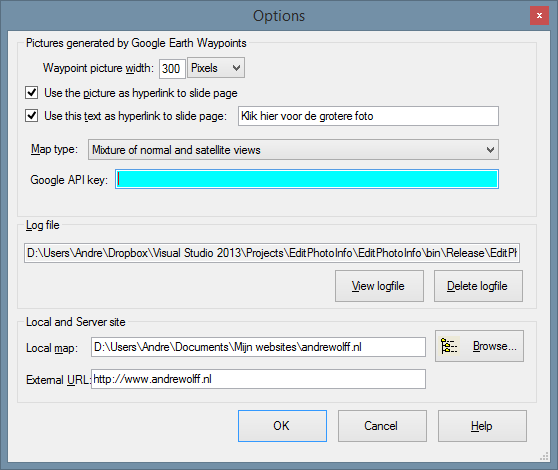
To make the Google Earth kml file in program EditPhotoInfo, open that program and click on the Options button in the upper right corner:

The first panel allows you to set the properties of the map and of the picture shown the pop-up window you see if you click on a purple camera icon, see above.

The information in the panel 'Local and Server site' is used to create the Google Earth kml-file. The 'Local map' is the folder on your PC with the start file of your web site. (the root directory). Use the Browse button to select this folder. The 'External URL:' is the Internet address of the corresponding folder on the server.

Close the Options window and click the 'Open' button in the main window and browse to one of the photos in the jAlbum Image directory. Next check in panel that says 'Google Earth kml-file' the check-box to use photos of the website.

Click now on the 'Make file' button and browse to the slides directory of the album and double-click on one of the images. A Google Earth file map.kml is made in the jAlbum output directory. 

To open that file  in Google Earth,  click on the 'Waypoints' button and you see the locations of your photos in Google Earth. 

After the album with the kml-file has been uploaded, you can click on a purple camera icon  to open a pop-up window with the photo. Click here  to see an example. The name of the folder for the waypoints can be entered behind 'Waypoints map name:'. 

If you have a  GPS track log file, you can also display it in Google Earth and save it in the same folder as the waypoints file. The combined result can be saved via 'Save Place as' as map.kml file. Click here to see an example in Google Earth and click here to see the same example in Google Maps and click here to see the map made with the Slide Show 4 Mapp.htt template, which uses the Google Maps Javascript API.

Click here  to download and install newest version of the Slide Show 4 skin and click here to open the Slide Show 4 skin manual.