11 september 2024

How to view your current position in a Google Map or OpenStreetMap route map in an jAlbum album.

In a Google Maps map

With the latest version of the FancyBox, the PhotoSwipe and the LightGallery skin, it is possible to make a Google Map  route map with the photo locations and a new button to display your current position. As an example open this album  on a mobile device and click on the 2nd button from the left..

If you do this on an Pihone, you see this:


Click next on the location button, the left button in the upper right corner. The system will ask you whether it is allowed to use your current location. Confirm this. 

Next you see the Google map with a blue current location marker centered in  the map like in this example:


To remove the current location, close the map by clicking the close button in the upper right corner.

To implement this in your album, you have to set check-mark 'Show current location in Google Maps on mobile devices'  on the Map settings tab in the skin.

You make the map via program MakeMap:


For more info see the Help in MakeMap or this blognote 

In case you do not use the FancyBox, the PhotoSwipe or the LightGallery skin, it is possible to make a Google Map  route map with the photo locations in a separate file GoogleMap.html with program MakeMap. As an example, you can use this input in case you use the Lizard skin:


In a OpenStreetMap map

With the MakeMap program you can make a OSM_Map.html webpage which displays a leaflet OpenStreetMap map with the photo locations and optionally the current position.

Use the following settings to do that with  program MakeMap:


You should set check-mark 'Show current location on mobile devices', to display the current location in the generated map.

For more info see the Help in Makemap or this blognote 

This works for my 3 skins mentioned above, but also for the Plain skin and all other skin names you see if you expand the skins  combo-box  in the upper left corner.

As an example of an OpenStreetMap with the current position, open on a mobile device this webpage or open this album on a mobile device and click on the 3th button from the left.

If you do this on an iPhone, you see this:


Click next on the location button, the left button in the upper right corner. The system will ask you whether it is allowed to use your current location. Confirm this. 

Next you see in the OpenStreetMap a blue circle which represents your current localization The size of the circles corresponds with the accuracy of the location:


If you are near to the track you see something like this:


After you switched on the current location, the inner circle gets a red color. If you click again on the location button, the current location is removed and the inner circle of te location button ets again he black color.



24 augustus 2024

New version 5.8 of the PhotoSwipe skin.


The new version of the PhotoSwipe skin contains next new features:

If check-mark "Slide page thumbnails" in the new "Slide page thumbnails" group on the Slide page - layout tab has been set, the light-box will show thumbnails below the slide image.

You see in that case a new button in the toolbar to hide or show again the thumbnails.


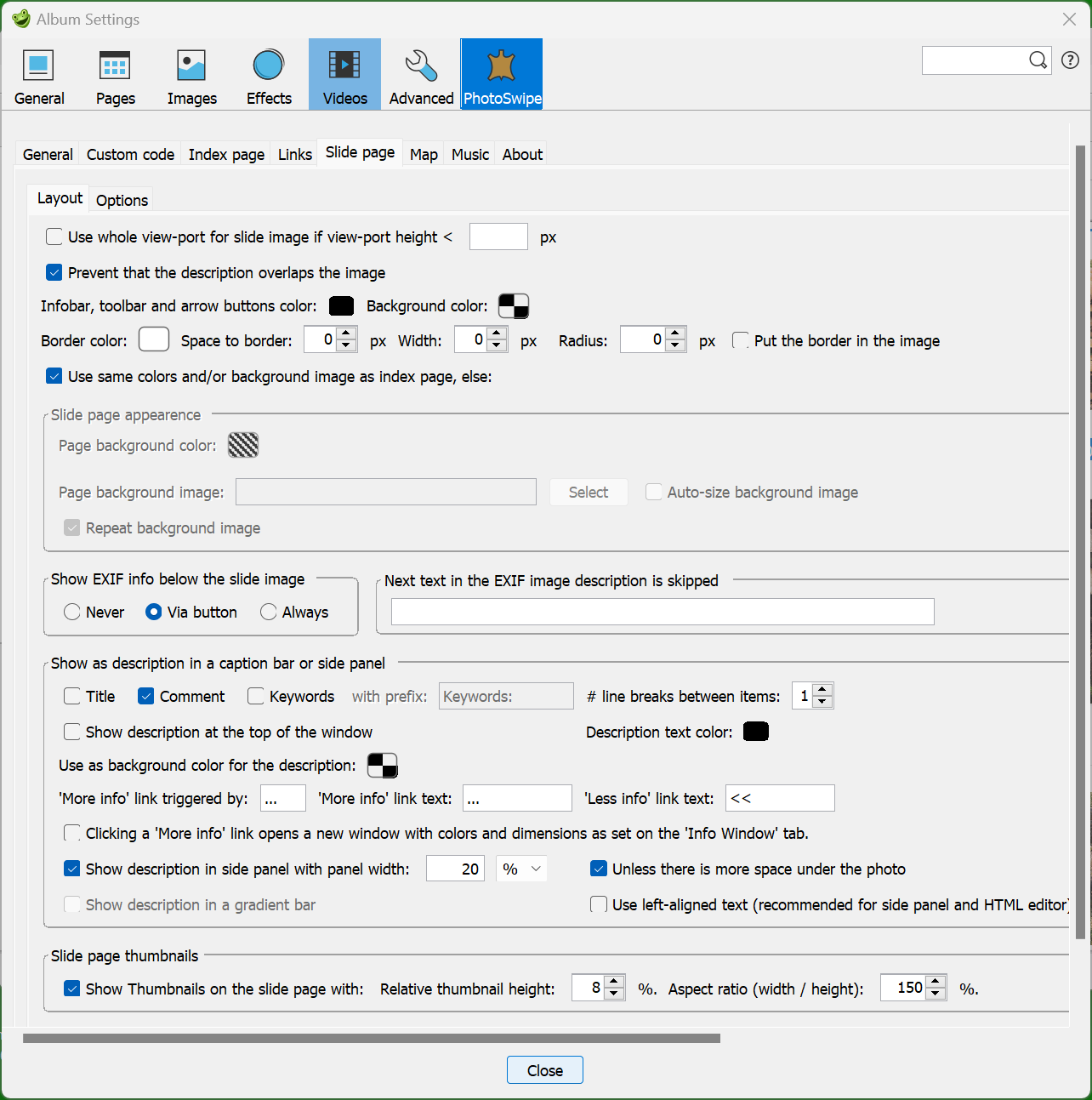
By setting check-mark 'Show Thumbnails on the slide page with:', in the 'Slide pages thumbnails' group, you can display the thumbnails at the bottom of the slide page. The size of these thumbnails are determined by the next two fields.

The currently displayed image is displayed with a border in the thumbnails strip. You can click on another thumbnail to open the corresponding image in the light-box. Scroll vertically through the thumbnails if there is no room for all thumbnails in the displayed row.

If there is not sufficient free space available below the slide image, the thumbnails strip may overlap the image and/or description of the image. However the tool-bar contains a button to hide or show the thumbnails strip, so by clicking on that icon, you can toggle the display of the thumbnails to reveal the description.

Use the settings shown in the screen shot above to get a maximum of free space. So clear the check-marks 'Show description in gradient bar' and 'Use whole view-port …' and set check-mark 'Prevent that the description overlaps the image'.
To prevent that you get small portrait type of slide images on a smart-phone in landscape mode if large descriptions are used, it is recommended to set both check-marks 'Show description in side panel …' and 'Unless there is more space undr the photo'.

To see an example, open this album made with the settings displayed above.

05 juli 2024

Enhance the Plain skin via include files


Introduction

In version 2 of the Plain skin, most of the modifications discussed in my previous note have been added, except the points 4 and 5

In version 2 of the Plain skin Laza did implement on my request include files, which makes it possible to insert extra code in the skin, so there is no need to change the original skin code.

In this note I will show how you can enhance the Plain skin with new features, starting with making the lightbox background color equal to the index page background color.


Include files in Plain version 2.7

page-header.inc:

With an include file user-head.inc in the project directory, you can insert extra code just before the </head> tag. You could use that to add extra css-files of add css-code via <style> blocks. Code added via this file will be used in the root-album and in the folder albums.


user-style.css:

I used include file user-stylele.css to add extra css-code at the end of the common.css file. Code added via this file will also be used in the root-album and in the folder albums.

To see the code I used, download this file and all other files made in this note here. The extra code in the user-style.css file adds the following features:

  • It makes the text and background color of the lightbox equal to the text and background color of the thumbnails page.

  • The caption text color is also made equal to the text color of the thumbnails page.

  • The caption background color is also made equal to the background color of the thumbnails page, but it is made more transparent (Opaque of 60%). It is of course more flexible to change the Page background color control on the design tab in a color control which allows also the define the transparency or even better to add a new color control with transparency for a caption, but this time I did not want to change the UI.

  • copied the css-code used in my PhotoSwipe skin to make the the audio clip control smaller and more transparent.

  • Finally I added css-code for the extra buttons discussed below.

To see the result of these changes open this sample album.


user-code.js:

With file user-code.js you can add extra javascript code to be used in the root album and in the folder albums. I use that for maps made with my MakeMap program. To make it possible to open the lightbox directory from a route map for the corresponding image number, via an URL like this: ''https://andrewolff.jalbum.net/Sample_Project_Plain_inc/index.html?M18”, which opens the light-box for the 19th image in the album.

This is also used in this albumYou can find the used code in the zip-file and in this note.

With Plain version 3 and MakeMap version 2.8, the light-box can be opened by clicking on a marker or thumbnail in the map, without the use of this include file.


user-options.inc:

The contents in this file is used to add and/or change options of the lightbox. You can find these options in the PhotoSwipe gallerydocumentation.


Code added via this file will be used in the root-album and in the folder albums.

In this sample album it is used to set the bgOpacity to 1, otherwise you see part of the thumbnails page and clicking in the image will start or stop the slideshow.

user-top.inc:

You can use this include file to insert extra html-code after the title of the index page. You have to save such a file in each image directory where you like to show the extra code.

user-top-all.inc:

You can use this include file to insert extra html-code after the title of the index page. You have to save such a file in the root image directory if you like to show the extra code in the root output directory and all other output folders.

In this https://andrewolff.jalbum.net/Sample_Project_Plain_inc/ it is used to add a theme image,

user-code.inc:

You can use this include file to insert extra html-code after the  description of the index page. You have to save such a file in each image directory where you like to show the extra code.

user-code-all.inc:

You can use this include file to insert extra html-code after the description of the index page. You have to save such a file in the root image directory if you like to show the extra codein the root output directory and all other output folders.

In this https://andrewolff.jalbum.net/Sample_Project_Plain_inc/ it is used to add buttons to open the route maps and to download the corresponding gpx-file as described in this note.

The buttons are only added if the corresponding file 'track.gpx', 'GoogleMap.html' or 'OSM_Map.html' is found in the album output directory..

user-footer.inc:

You can use this include file to insert extra html-code at the end of the index page. Code added via this file will be used in the root-album and in the folder albums.

I used this in the sample album to insert a copyright statement under the thumbnails. But because the statement is automatically inserted in all folder albums, you see in the sample album that 3 folder albums show the wrong copyright statement.


Desired changes

Use user-footer.inc for footer code for the current folder and use user-footer-all.inc for footer code for the root folder and all other folders,

Demo albums

All described include files can be downloaded here and you see the effect of the unmodified Plain skin in this sample album, in this Audio-clip demo album.


07 april 2024

New versions of program MakeMap


In version 2.3.0 the next items are added or changed:

  • The close buttons on both map types are now made with embedded buttons.

  • The download kml-file has been removed from the Google Earth web page.

  • All jAlbum skins do use now the same template file, the skin res directory is no longer used.

  • The MakeMap program can now also be used for the jAlbum Plain skin, see this Plain sample album, more info in this note.

  • If the new check-box Enable links has been cleared, no light-box with the corresponding slide page will be opened if you click on a way-point in the map and next in the thumbnail.

In version 2.4.0 the next feature has been added

It is now possible to display up to 8 tracks in an OpenStreetMap in different colors:

The following 8 file-names can be used to display tracks in OpenStreetMaps:

  • track.js, the default value in program ConvertTrack, wil show a red track.
  • trackGreen.js which will display a green track.
  • trackMagenta.js which will display a magenta track.
  • trackBlue.js which will display a blue track.
  • trackBlack.js which will display a black track.
  • trackBrown.js which will display a brown track.
  • trackYellow.js which will display a yellow track.
  • trackOrange.js which will display a orange track.
Example of of multi-track OpenStreetMap:


To see this on-line, open this album and click on the third button from the left (OSM kaart) or open the map directly.

In version 2.5.0 the next features have been added

  1. The new Plain and Lizard skins are now supported, see this Plain album and this Lizard album.
  2. It is now possible to use thumbnail images instead of fixed marker icons:

    see also the maps of this album.
  3. An OpenStreetView map is now centered around a selectable waypoint
  4. The zoom level of an OpenStreetView map is lowered for smaller devices.

In version 2.8.0 the next item is changed:

With version 3 of the Plain skin, the lightbox can be opened by clicking the thumbnail, without the use of an include file, see  this sample album.

In version 2.9.0 the next items are changed:

All track js-files starting with the tekst 'track' are now automatically displayed in an OpenStreetMap made with program MakeMap.

The used track js-files should now contain the track color, program ConvertTrack version 2.1 adds the selected track color to the js-file. Track js-files made with earlier versions can no longer be used, so the corresponding gpx files should again be converted by the newest ConvertTrack program.

If the selected album did contain just one slide with a GPS location, there was a problem which has been repaired in this version. 

19 maart 2024

How to show Route Maps in Albums made with the Plain, Lizard or Tiger skin


Introduction

With my Windows program MakeMap, you can make a map of all photo locations in an album made with most current jAlbum skins.

First you should download and install this program from my website.

I did not buy a Microsoft security certification, so during the installation you will see messages like 'Setup.exe is not downloaded frequently and can be dangerous' and 'Your PC is protected'. Ignore these messages and choose actions like 'More information' and/or 'Nevertheless, do the installation'.

You can make two types of maps: a Google Earth Map and an OpenStreeMap as has been described in the help-file.

The most simple way is to use an OpenStreetMap, because this does not require an API-key.

If the album shows pictures of a walking or cycle tour and you made a gpx-track of the tour with a GPS-device or a navigation app like Wikiloc, you can also add this track to the map. The easiest way to do that is to use my Windows program ConvertTrack, You can download and install this program from my website.

This note describes how you can make such a map for an album made with the skins made by Laza.

A simple OpenStreet Map

You can only make a map if your images contain a GPS location.

First make and upload the album and don't forget to select the settings to show a location button in the in the Lightbox.

Next open program MakeMap  and select the following settings:


The setting of 'Back button closes window' determines what happens if you click the close button in the upper right corner of a map. If you open the map in a new tab, you should check this check-mark. In most cases I open a map in a new tab, in which case  I check that checkmark.

Use the button 'Select Root directory' to select the root directory of your websile and enter the corresponding URL of your web-site in the text-box after 'External URL:'. The structure of the output folders on the PC must match the folder structure on the server.

If you follow the Album recommendation to use as output folder a sub-folder 'album' of the project folder (which I never do), you have to fill in these fields for each album you make: Put the absolute address of the album folder in field 'Local root folder' and the corresponding URL of that album in the 'External URL' field.

Note: You should not use ' or " characters in folder names or in URLs.

If you open the first combo-box in the MakeMap program you see the skins which are supported by program MakeMap. Select here 'Plain' for the Plain skin and 'Tiger' for the Tiger and Lizard skin.

Next browse with the 'Select a slide image' button to the slides output folder and select an image in that folder.

Next click on the button 'Make Map'. This will create two files in the output folder: a web-page OSM_Map.html and a file waypoints.js which contains the photo locations.

To see the result, click on the 'Show Waypoints in Map web-page'.

If you do not see all locations on the map, lower the 'Zoom level' and click again on the 'Make Map' button. If you like to see more details, raise the zoom level.

Next you should make a link to the generated map. The simplest way is to do that with a link in the album description via the HTML editor:


See here an example of such a link.

Another way is to make a weblocation of the map. To do that open the uploaded album and replace the text 'index .html' in the browser address field by 'OSM_Map.html' and click on the return button. The map page opens and you see now the URL of the map page. Drag and drop that URL to your album or make a weblocation by clicking with the right mouse button in the explorer window and select weblocation, where you can also enter that URL.

Finally make and upload the album again. You will see an album like this example album.

In version 3 of program MakeMap it is possible to show your current position, this has been described in this blogpost.

Add a track to the OpenStreetMap

Open my program ConvertTrack and browse to the gpx-file via the 'Open' button:


Next click on the 'Save as...' (on the Dutch screen shot above showed as 'Sla op als...') button and save the file as trackl.js in the output folder of the album. Other names  (like 'track-2.js') are also allowed as long it starts with the text 'track'.
If you click the Make Map button in program MakeMap, all js-files starting with the text ‘track’ will be added to the map.

Finally upload the album again.

A simple Google Map

Follow the same procedure as has been described above for the OpenStreetMap, but select next settings after you opened Program MakeMap:


Notice that you have to enter your Google maps API key in the 'Google API key' field, this is the same key as you use in the skin Ligthbox 'API key' text-box.

After you selected an image in the slides folder and next clicked the 'Make Map' button, two files are created in the output folder: the web-page 'GoogleMap.html' and the file 'map.kml' which contains the photo locations.

After you made the map you can see the result by clicking on the button 'Show Waypoints in Google-Earth' if you installed the Google Earth program on your PC.

To use the other button 'Show waypoints in a web-page', you have first to upload the album with the new files.

Finally make the link to the GoogleMap.html' web-page and make and upload the album.

Add a track to the Google Map

You can do this only if you installed the Google Earth program on your PC.

Open my program ConvertTrack and browse to the gpx-file via the 'Open' button.

Next click on the 'Save as...' (on the Dutch screen shot above showed as 'Sla op als...') button and save the file as track.kml on your PC, for example in the output folder of the album. Open first your file map.kml and next file track.kml with program Google Earth:


Click with the right mouse button on 'Temporarily places' and next on

'Save location as...' and select file map.kml in the output directory. Overwrite file 'map.kml'.

Next upload the album again.

Open the Lightbox via the thumbnail in the Map

If you click on a waypoint in a generated map, a thumbnail will be showed like this:


If you click on the thumbnail, the lightbox with the correponding slide will be opened in most supported skins, see for example this PhotoSwipe skin album, this Tiger sample album and this Lizard sample album.

With the Plain skin version 3 and MakeMap version 2.8 you can set check-box 'Enable links' without the use of include files.

If you set check-mark 'Use image as waypoint ...' you will see thumbnails as markers, see this Plain sample album or my Plain Schotland album..


07 november 2023

New skin versions

My jAlbum skins have been updated:

FancyBox version 4.5.1.

PhotoSwipe version 5.7.2

LightGallery version 1.5.1

Slide Show 4 version 5.4.1


Survey of the changes:

  • If a description is given in a folder tile, a possible link is removed, because a link in a link will not work.

  • The description in a tile uses now also the 'Thumbnails text font-size', see this example album.

  • The Map.htt template file is changed so that the close button is better visible, see this example.

  • If a route map is shown with the OSM_Map.html web page made with my program MakeMap and the lightbox has been opened via a click in the thumbnail, you can now use the lightbox close button to return to the map, see this example. The latest version of MakeMap makes it also possible to disable opening the lightbox.

  • PhotoSwipe library version 5.4.2 is now used in res\photoswipe folder of the PhotoSwipe skin.

  • Style Blue has been added to the Slide Show 4 skin.


05 november 2023

New version 2.3 of my program MakeMap


Next items have been added or changed in version 2.3:

  • The close buttons on both map pages are now made with embedded buttons.
  • The download kml-file button has been removed from the Google Earth web page.

  • All skins do use now the same template file, the skin res directory is no longer used.

  • The MakeMap program can now also be used for the Plain skin, more info on this note.

  • If the new check-box 'Enable links' has been cleared, no Light-box with the corresponding slide page will be opened if you click on a waypoint in the map and next in the thumbnail.

You see the new check-box 'Enable links' at the top of the page:


If you clear check-box 'Enable links', no Light-box with the corresponding slide page will be opened if you click on a waypoint in the map and next on the thumbnail like this;:


See here for an example album which do not open the lightbox if you click in on the thumbnail.


You should clear this check-box if a lightbox of the skin can not be opened directly via an URL like this: ''https://andrewolff.jalbum.net/Sample_Project_Plain_inc/index.html?M18”, which opens the light-box for the 19th image in the album. It is recommended to clear this check-mark if you use an unmodified version of the Plain skin, unless you add the next user js-code via an include file 'user-code.js' to enable this:

document.addEventListener("DOMContentLoaded", function()  {
    if ((window.location.search.length) > 0) {
        var str = window.location.search.substring(1);
        if (str.substring(0, 1) == "M") {
            str = str.substring(1);
        }
        if ((str.substring(0, 1) != "f") && (str.substring(0, 1) != "_")) {
            openLightbox(parseInt(str));
}
    }
});

function openLightbox(slideNr) {
    if (slideNr < 0) slideNr = 0;
    const x = document.querySelectorAll(".main .card.image > .thumb,.card.video > .thumb");
    if (x) x[slideNr].click();
}

For an example, open this album.

More information in the Help-file and on the jAlbum forum.

19 oktober 2023

How to enhance the Plain skin


Summary


In this jAlbum forum thread I showed how the Plain skin could show the location in a Leaflet OpenStreet map and in this thread I showed how the PhotoSwipe lightbox could be replaced by the LightGallery lightbox which is also used in my LightGallery skin.
Because my big friend Jeff Tucker blocked my access to the forum and removed all version information and jaskin files, I did publish new versions in the Plain-LG demo album and now I continued the reporting about the exercise here in this blog.
These modifications were done with a Plain skin version which used a  BeanShell GUI, but the current version 1.0.4 uses a compiled GUI, which requires the NetBeans program for changes.

So I investigated now how version 1.0.4 could be modified.
The result is a Plain_M version 1.0.4B which contains the following enhancements:
  1. The Thumbnails caption selection box has been copied to the Lightbox tab and can now be used to select a caption below the image in the lightbox.
  2. Thumbnails caption bug in Plain 1.0.4 repaired.
  3. If the API-key field is empty, a Leaflet OpenStreet map will be used to display the location.
  4. In the HEAD section code can be added via a file  page-header_0.inc in the image directory.
  5. The lightbox background color is equal to the index page background color.

This example album shows the result and allows you to download the the jaskin file used to make this album.

This album uses the following settings in the modified lightbox tab:


The caption box in the Thumbnails tab is empty.

The implementation 


First you copy the the Plain map from the standard jAlbum skin directory C:\Program Files\jAlbum\skins to a Plain-M folder in the directory used for skins made by volunteers C:\Users\Andre\AppData\Roaming\JAlbum\skins

Next you install NetBeans and JAVA tools as described in the thread Compiling a skin's user interfaceCreate a new project Plain-M as described in the thread.
Copy file Gui.java from directory C:\Program Files\jAlbum\skins\Plain\src\plain to the NetBeans src directory, in my case D:\Andre\Documents\NetBeansProjects\Plain-M\src.

For this version I copied in Netbeans the code of the caption selection boxes from the Thumbnails panel to the Lightbox panel and renamed the copied controls, for instance I renamed the thumbnailItems control into slideItems control.

I added also a label hintOSMLabel and added the corresponding text in the Plain-M text.properties file:

ui.hintOSM=To use an OpenStreet map, leave the next field empty

Translate this string to other languages via menu Tools / Translator / Update ALL skin translations (auto translate).

After compiling the changed  Gui.java file, you will find the corresponding Plain-M.jar file in folder D:\Andre\Documents\NetBeansProjects\Plain-M\dist. Move file Plain-M.jar to the skin directory C:\Users\Andre\AppData\Roaming\JAlbum\skins\Plain-M\lib and overwrite the existing file.

To see the modified Gui.java file, download the Plain-M.jaskin file and open after the installation folder C:\Users\Andre\AppData\Roaming\JAlbum\skins\Plain-M\src\plain.

Next edit in jAlbum the template files. All my changes are indicated as comments with the letters AW in the skin directory C:\Users\Andre\AppData\Roaming\JAlbum\skins\Plain-M.
Note that these template files uses a js-shell, so you should use javascript code in these files. I use sometimes ChatGPT to convert JAVA code to javascript code.

For the OpenStreet maps implementation I changed files init.js, index.htt and photoswipe-init.js.

The slide captions are added as described in the PhotoSwipe documentation
To keep it simple, the slide captions are saved in the alt attributes.
I added a simplified version to file  photoswipe-init.js:

// <AW
   lightbox.on('uiRegister', function() {
    lightbox.pswp.ui.registerElement({
        name: 'custom-caption',
        order: 9,
        isButton: false,
        appendTo: 'root',
        html: 'Caption text',
        onInit: (el, pswp) => {
            lightbox.pswp.on('change', () => {
                const currSlideElement = lightbox.pswp.currSlide.data.element;
                let captionHTML = '';
                if (currSlideElement) {
                        // get caption from alt attribute
                        captionHTML = currSlideElement.querySelector('img').getAttribute('alt');
                }
                if (captionHTML.length > 0) {
     el.style.display = 'block';
     el.innerHTML = captionHTML;
   }
   else  el.style.display = 'none';
            });
        }
    });
});
// AW>

The required CSS code is added to file common.css:

/***< AW ****************************************  Customized lightbox  captios */
 .pswp__bg {
    background-color: ${pageBgColor};
  }

.pswp__custom-caption {
  position: absolute;
  color: ${textColor};
  left: 50%;
  transform: translateX(-50%);
  text-align: center;
  background-color: ${pageBgColor}; 
  padding: 4px 18px;
  border-radius: 4px;
  bottom: 16px;
}
 .pswp__custom-caption a {
    color: ${textColor};
}
/*******************************************  AW> */

To save the slide captions in the alt attribute I had to change file index.htt, but also file util.js in C:\Users\Andre\AppData\Roaming\JAlbum\skins\Plain-M\lib
In that file I used a quick and dirty solution by copying function getCaption which uses control thumbnailItems to a new function getSlideCaption which uses the new control slideItems. I changed also  function getThumbnailElement which processes the alt attribute.

This is a very simple solution to add captions. My PhotoSwipe skin uses the dynamic caption plugin  which offers much more features: captions which do not overlap the image, captions in the sidebar and you can change the caption colors, see some examples in this example album.


Modification of version 2.4

In version 2 of the Plain skin, most of the modifications discussed above have been added, except the points 4 and 5.

To make the lightbox background color equal to the index page background color you can use in version 2.4 include files.

This has been decribed in my note Enhance the Plain skin via include files.

.


26 september 2023

How to use a video or slide-show instead of a theme image with jAlbum


How to use a video or slide-show instead of a theme image with jAlbum


With the latest version 5.7.1 of my PhotoSwipe skin, the latest version 4.5.0 of my FancyBox skin and with the latest version 1.5.0 of my LightGallery skin it is possible to replace the theme image by a video or slide-show if you make a jAlbum web-album.

In both cases, you have first to remove the theme image:

  1. Open the Explorer, click with the right mouse button in the Theme image in the lower right corner and select Remove.

  2. Open the skin Index page / Theme image tab and clear field 'Theme image'.

  3. Finally clear check-box 'If this field is blank or …'

Next open the Index page / Footer tab and check the new check-mark 'After the theme image'.

The other requred actions depends on the type of Theme image replacement.

Use a video instead of a theme image

Enter the next code in the html code text-box Index page / Footer tab:

<div class="iframe-container iframe-container-Video">   

<iframe class="frame" src="https://www.youtube.com/embed/YN5avcf43OE?autoplay=1&mute=1" allow="accelerometer; autoplay; encrypted-media; gyroscope; picture-in-picture" allowfullscreen></iframe>

</div>


Next enter this CSS code in the CSS code text-box on the Custom code tab:

.iframe-container { position: relative; height: 0; }

.iframe-container-Video { padding-bottom:40% }

.iframe-container iframe { border: none; position: absolute; top:0; left: 0; width: 100%; height: 100%; }


Play with the padding-bottom % to get the desired display.

The youtube src string depends on the video you like to show.

To get this string, click on the 'Share' button below your selected video and next on the 'Embed video' button.

Finally make and upload the album,

For an example of an album with a video instead of a theme image, open my Drenthe album.

Use a slide-show instead of a theme image

First you should make the slide-show you like to use as a replacement of the theme image. You can use all my 3 skins to do that, but I recommend to use my LightGallery skin, because that skins has a large selection of slide-show transitions.

Select for the slide-show images with a large width / height ratio and use a large width x height images bounds:


If you like, you can make the ratio the same for all images with a fixed shape filter:

filter1

class=FixedShapeFilter all prescale

Enter this string in the Advanced / User Variables tab:

Control the cropping, click with the right mouse button in the image and select 'Set crop focus...' and select option 'thumbnails bounds' (for for me unknown reasons, there is no 'image bounds' option).


On the skin 'General settings tab select check-marks 'Skip thumbnails pages' and 'Disable Viewer settngs' and select a 100% transparent color for the 'Page background color'.

On the skin Slide page / Layout page', clear the next check-marks: 'Prevent that the description overlaps the image' and clear all check-marks in the 'Show as description in the caption bar or side panel'.

On the skin Slide page / Options, select the slide show parameters and set / clear the next check-marks:

Next make the slide-show as you see in this example.

Now open the project file of the album where you like to use the slide-show instead of the theme image.

Enter the next code in the html code text-box Index page / Footer tab:

<div class="iframe-container iframe-container-slideShow">

    <iframe scrolling="no" src="https://www.andrewolff.nl/FotoSerie/AlgarveSlideShow_LG/"></iframe>

</div>

Enter here the URL of the slide-show you made above,

Next enter this CSS code in the CSS code text-box on the Custom code tab:

.iframe-container { position: relative; height: 0; }

.iframe-container-slideShow { padding-bottom:25% }

.iframe-container iframe { border: none; position: absolute; top:0; left: 0; width: 100%; height: 100%; }

Play with the padding-bottom % to get the desired display.

Finally make and upload the album and you see something like my Algarve album.