07 augustus 2015

How to process pictures in subdirectories in jAlbum with the FancyBox, the Slide Show 4 or the PhotoSwipe skin.

Both the Slide show 4 skin, the FancyBox skin and the PhotoSwipe skin allows you to display pictures in subdirectories of the main image directory as sub-albums which are opened via links on the main album at the top of the tree. 

I will discuss here 2 methods, in two examples. I use in both cases the same directory structure: a root directory which contains the images of the top album and contains also all folders with additional albums, both for the image directory and for the output directory. The jAlbum project files are saved in the image directories.

Before version 3.1 of the Slide Show 4 skin, the main album did stay open if you opened a folder-album, so that possible music started in the top-album did continue as a folder-album was opened. With the start of version 3.1 and with the PhotoSwipe skin, the folder-album is opened in the same window as the top album. This means of course that background music played by an audio control in the top album is stopped if the folder-album is opened. To prevent that the music stops if you open a folder-album, the music can be played in a new Music.htt web-page, which runs in a separate window.

There are 3 ways to create a such a tree of albums, via one jAlbum project file for all subdirectories in the top window, with for each directory a jAlbum project file which is saved in the corresponding directory or with an Album of albums via weblocations (requires jAlbum version 14).

1. One project file for all albums.

In the first case you have to set the 'Process subdirectories' and 'Include subdirectories in index pages' check-marks in the jAlbum Advanced / General settings:

If you check the 'Chain directories' check-mark (requires jAlbum version 12.2 or later version and Slide Show 4 skin version 2.1 or later version, with PhotoSwipe in all versions), you can use the the green arrow buttons on top of an index page to open the album in the next / previous directory of the tree.

In the second case, if you use a set of project files to generate the albums, you should not check these check-marks.

Using one project file is of course the fast method to generate a tree of albums, but it has a number of disadvantages:

1. The thumbnails and slides of all albums do have the same dimensions, because the settings on the jAlbum Images / General tab are applied in all sub-albums.
2. If you use fixed shape thumbnails they will be used in all albums, it is not possible mix albums with fixed shape and non fixed shape thumbnails
3. The number of thumbnails columns is the same in all albums, except if you set check-mark 'Variable number of thumbnails per row' on the index page settings.
4. If the html code text-box contains html code, it is only executed for the top index page.
5. The button links defined on the Slide Show 4 Links tab are only displayed on the top index page. If you check check-mark 'Show these buttons too if subdirectories are processed' they will also be displayed on sub-albums, but it is not possible to use in that case different links for different albums. This is mostly not a big problem. However if you use as links in your sub-albums the same file for instance more_info.html, the link will only be displayed if such a file exist in the sub-directory. The contents of file more_info.html can of course be different for each subdirectory.
6. It is not possible to use for each sub-album a picture in the slides directory as theme image. If you like to do that you should use in each sub-directory an include file page-header_2 with a contents like this:
<div class="themeImage">
    <img src="slides/150619-125959_Norrfallsvikken-7.jpg" style = "width:100%" alt=""  ></div>
However it is also possible to enter in the the 'Theme image' field a string like 'theme_image.jpg' and save the theme image under that name in the root- and each sub-directory of the output destination directory. No theme image will be displayed if this file is not found.

 To enter the Title and/or Description of a sub-album, click with the right mouse button on the folder which contains the pictures of the album and select in the menu 'Edit':

Next you see this window:

Enter the title in the Title field at the right site and enter the description in the comment field below the folder image.

For an example of an album made by one project file click here  and to see the same tree of albums made by 13 project files click here 

The Slide Show 4 index page settings of the first album contains the next parameters:

You see here that it is possible to give the border folder thumbnails a special color, so that you see better the difference with normal image thumbnails.

If the top album index page contains slide picture thumbnails and thumbnail folder icons, the thumbnail folder icons are displayed in a second table of  thumbnail folder icons after the slide picture thumbnails of the top album:

However it is the responsibility of the album creator that the folders are located after all normal images in the jAlbum Explore. 


2. A project file for each folder album

This is only possible with the Slide Show 4 skin,It is sometimes easier and more flexible to use a separate project file for each directory where you define this information for each subdirectory in the corresponding project file. You are in that case free to chose for each album the optimal dimensions and shape of the thumbnails and the slides and the number of thumbnails columns.

If you do this, there are 3 points important:

1. In the Album settings Advanced / General tab, you should clear check-marks Chain directories, Process subdirectories and Include subdirectories in index pages.


2. For each project file in a subdirectory, you should fill the same link address '../index.html' in the 'Parent page URL' field on the Slide Show 4 Links tab:


3. The links to the albums in the folders should be defined in the html code text block on the Slide Show 4 Index page tab of the top window:
In this example the links are displayed as 2 horizontal menu bars at the bottom of the index page of the top album:

The CSS code is standard available in the common.css file in the res directory, because the same code is used for the top menu you see at the top of the index page. This menu is defined at the links tab:

After you created the whole tree of albums you should upload it to the jAlbum website via the jAlbum project file of the top album (or use a FTP program to transfer all output directories to your own web server).

Creating such a tree is rather simple:
  • First make the root album in the top directory.
  • Next copy the resulting project file JalbumSS4.jap to the first subdirectory, edit that file in jAlbum by adding the link to the root, edit the output directory, browse to the theme image, change the thumbnails size is useful etc. and make the first folder album.
  • Next copy that file to the 2nd folder and change at least the output directory and I make the album.
  • Do the same for the other folder albums.
  • Finally open again the top album and upload it to the server. The albums in the folders are automatically uploaded with the top album.


With the information supplied by jGromit, see this thread on the jAlbum forum, you can save time by doing this with a batch file.

In the root directory I created a batch file RebuilFolderAlbums.cmd with the following contents:

cd "D:\Users\Public\Pictures\Texel\TopWindow\0-Zuiden_W2010_09_04"
java -Xmx800M -jar "C:\Program Files\jAlbum\JAlbum.jar" -projectFile "JalbumSS4.jap" -appendImages
pause
cd "..\1-Geul_W2011_09_29"
java -Xmx800M -jar "C:\Program Files\jAlbum\JAlbum.jar" -projectFile "JalbumSS4.jap" -appendImages
pause
cd "..\2-Hors_20140606-09_Mokbaai"
java -Xmx800M -jar "C:\Program Files\jAlbum\JAlbum.jar" -projectFile "JalbumSS4.jap" -appendImages
pause
cd "..\3-20140608_Bollekamer"
java -Xmx800M -jar "C:\Program Files\jAlbum\JAlbum.jar" -projectFile "JalbumSS4.jap" -appendImages
pause
cd "..\4-Dennen_W2011_10_02"
java -Xmx800M -jar "C:\Program Files\jAlbum\JAlbum.jar" -projectFile "JalbumSS4.jap" -appendImages
pause
cd "..\5-20140602_Alloo"
java -Xmx800M -jar "C:\Program Files\jAlbum\JAlbum.jar" -projectFile "JalbumSS4.jap" -appendImages
pause
cd "..\6-Bleekerij-20130401"
java -Xmx800M -jar "C:\Program Files\jAlbum\JAlbum.jar" -projectFile "JalbumSS4.jap" -appendImages
pause
cd "..\7-20140604_Oudeschild"
java -Xmx800M -jar "C:\Program Files\jAlbum\JAlbum.jar" -projectFile "JalbumSS4.jap" -appendImages
pause
cd "..\8-Muy_W2011_09_27"
java -Xmx800M -jar "C:\Program Files\jAlbum\JAlbum.jar" -projectFile "JalbumSS4.jap" -appendImages
pause
cd "..\9-Slufter-Muy_W2011_10_01"
java -Xmx800M -jar "C:\Program Files\jAlbum\JAlbum.jar" -projectFile "JalbumSS4.jap" -appendImages
pause
cd "..\A-Slufter"
java -Xmx800M -jar "C:\Program Files\jAlbum\JAlbum.jar" -projectFile "JalbumSS4.jap" -appendImages
pause
cd "..\B-NoordenF2011_09_30"
java -Xmx800M -jar "C:\Program Files\jAlbum\JAlbum.jar" -projectFile "JalbumSS4.jap" -appendImages
pause

Double click on file  RebuilFolderAlbums.cmd to make all albums in the folders. Next build in the usual way the root album directly with the jAlbum program and upload the album in the root. Because the other albums are in sub-folders of the root, they are automatically uploaded with the root album. 
You see the result here.

The music is in both examples played in the Music.htt web-page, but there is one difference: the link to this music web pages is in the first example showed in the menu of all albums, but in the second example only in the menu of the top album.

3. With weblocations


This requires jAlbum 14 and the latest versions of the PhotoSwipe and Slide Show 4 skin. 

It is a simple method: First open all the sub-albums from internet in your browser. Next start a new album, check the check-mark 'This is an album of albums' on the General settings tab of the skin and drag the button left of the URL  text-box in your browser into the jAlbum Explorer window.
Enter the title and possible comment for each album and Make the Album of Albums.

See also the PhotoSwipe Album of albums or the Slide Show 4 Album of albums example.

Click here to download and install newest version of the Slide Show 4 skin and click here  to open the Slide Show 4 skin manual.


19 februari 2015

Van Ziggo naar Caiway via glasvezel of naar KPN via koperdraadjes?

In Twente moeten de meeste mensen een andere provider voor internet en TV zoeken omdat Cogas, de eigenaar van de kabels, het contract met de provider Ziggo opgezegd heeft, zie dit bericht in Tubantia 

Ook ik baal ervan dat ik moet stoppen met Ziggo, want ik ben een tevreden Ziggo klant met een All-In-One+ abonnement die mij een internet gemeten internet snelheid van 90,21 Mbps download en 6,34 Mbps upload geeft.

Ik vind het stom van Ziggo dat ze er niet voor zorgt dat zij hier hun diensten niet kunnen blijven geven via de COAX en/of glasvezelkabel.

Maar ondanks alle protesten op Facebook en Twitter, zie ik niets gebeuren om dit tegen te houden. Dus ik denk dat je realistisch moet zijn en ervan uitgegaan moet worden dat Ziggo verdwijnt en dat op de glasvezelkabel voorlopig alleen Caiway komt. 

Volgens het laatste nieuws komt ook Fiber.nl op de kabel en dat zag er zo goed uit dat ik die als nieuwe provider gekozen had. Echter later bleek dat er een aantal nadelen zitten in eenn Fiber.nl abonnement:

In de handleiding of op de website geven ze niet aan dat er in Twente geen signaal uit de Coax aansluiting op het glasvezel modem komt. Dat heeft tot gevolg dat U voor elke TV een settop box nodig heeft die via een UTP kabel aangesloten moet worden, Uw huidige coax kabel die naar de TV gaat moet U dus vervangen. Als U nu radio's op de kabel heeft aangesloten, zal dat met Fiber.nl niet meer werken, U moet daarvoor een andere oplossing verzinnen.

Via de mail gaf Fiber.nl mij het volgend antwoord op mijn vragen:


Fiber.nl gebruikt een een Fritzbox! 7360 als WIFI.

De aansluiting van de verschillende diensten zal als volgt verlopen.
Er zal op 1 poort internet worden geboden. Indien u op meerdere pc`s bekabeld internet of draadloos internet wilt gaan gebruiken dient u op deze poort een router aan te sluiten.

Op een andere poort zal IPTV worden geleverd. Indien u gebruik maakt van meerdere Settopboxen dient u deze te verbinden met een Switch op deze poort.

De overige poorten op de wifi router zijn buiten gebruik.

Indien u analoge radio wilt blijven gebruiken dient u bij een andere provider een abonnement af te sluiten voor de COAX aansluiting.

Digitale radio bieden via de Settopbox.

Zondag sprak ik met een technische man van Fiber in the Shamrock in Almelo. Die vertelde mij dat er inderdaad maar één internet poort op de glasvezel modem zit, maar daar kan je niet direct de PC op aansluiten Aan die poort moet de Fritzbox router/WIFI komen die weer 4 poorten heeft. Op een van die poorten sluit je de PC aan, waarna er nog 3 poorten over zijn voor andere toepassingen. Dus ook al zou je geen WIFI willen, je hebt altijd die Fritzbox nodig. Je kunt het aantal poorten uitbreiden met een eigen router/WIFI die je dan ook wat verder weg kan zetten om een beter bereik te krijgen. Voorwaarde is wel dat die 2de router/WIFI in "Access point mode"gezet wordt.  Hij vertelde ook dat Fiber voor het eerst in Twente een eigen TV signaal gaan aanbieden (in de restr van het land geven ze het KPN signaal door aan hun klanten). Ze zijn nog volop aan het testen hoe dat moet met de Cogas  glasvezel kabel.

Bij Fiber krijg ik dus geen signaal voor mijn radio's en ik moet naar al mijn TV's de coax kabels vervangen door UTP kabels met settop box. Dit was voor mij de reden om mijn aanmelding bij Fiber in te trekken (je krijgt 14 dagen bedenktijd). De afmelding is ook direct netjes bevestigd.


U kunt een duidelijke uitleg krijgen van Fiber op YouTube.

Als je niet in zee wil gaan met Caiway of Fiber en je gebruikt internet alleen maar om af en toe iets te mailen, wat te Googelen en je belasting in te vullen, dan kan je natuurlijk overstappen naar telefoon maatschappijen KPN of Tele2 etc. Maar dan moet je je wel realiseren dat je internet snelheid via die ouderwetse koperdraadjes altijd onder de 50 Mbps zal liggen.

Nogmaals voor veel mensen is dat geen probleem en is dat mogelijk de goedkoopste oplossing, maar ik onderhoud websites en upload mijn foto's en software programma's. Bovendien heb ik een smart TV die op internet aangesloten is zodat ik bijvoorbeeld via internet gemiste uitzendingen kan terugkijken.

Ik heb dus een hoge internet snelheid nodig en daarom is Caiway of Fiber.nl de enigste bruikbare oplossing en zal ik dus wel overstappen naar naar Caiway. Maar naast de boven besproken problemen met Fiber.nl zijn er wel nog wat valkuilen voor Caiway:

Als je naar de Caiway website zoekt, kom je bijna automatisch op pagina  https://www.twentestaptover.nl/site/ terecht. Dan zie je rechtsonder een aantrekkelijke aanbieding staan en daar klik je dan natuurlijk op. Je komt dan op pagina https://www.twentestaptover.nl/site/nl/persoonlijkaanbod en daar wordt als beste koop aangegeven het “Allies-in-1-HD-plus” pakket voor 54,95 Euro per maand (na een jaar wat korting gehad te hebben). Dit komt overeen met mijn huidige Ziggo All-In-One+ abonnement. Echter nergens op deze pagina staat aangegeven dat dit eigenlijk bestemd is voor mensen die (nog) geen glasvezelkabel hebben. Dus ook al komt bij U inmiddels de glasvezelkabel in Uw huis, hij wordt in dit kabel abonnement niet gebruikt.

Zoek je namelijk wat verder op die site dan zie je dat er een veel aantrekkelijker aanbod staat op pagina https://www.caiway.nl/site/nl/pakketten Daar staat een Alles-in-1 Glas G100 pakket dat goedkoper is, 42,50 Euro per maand en een hogere snelheid heeft, 100Mbps up en 100 Mbps down als het bovengenoemde “Alles-in-1-HD-plus” pakket voor 54,95 Euro per maand. Maar je kunt hier alleen gebruik van maken als je al glasvezel in huis hebt. 

Het enige essentiële verschil schijnt te zijn 'Onbeperkt bellen' dat goedkoper is, althans dat heeft men mij verteld in de Caiway winkel in Almelo. Er zijn nog een verschillen:
Bij  “Alles-in-1-HD-plus” zou de modem gratis zijn en volgens de website niet bij "Alles-in-1 Glas G100". Echter bestel je het laatste pakket in de winkel, dan is ook daar het modem gratis.
De Alles-in-1 Glas pakketten zijn pas na een jaar opzegbaar en de monteur is niet gratis. Ook zijn de kortingen in het eerste jaar veel kleiner dan bij de Alles-in-1 HD pakketten.

Als je een hoge internet snelheid hebt, kun je gratis bellen via Skype en/of Facebook en andere kanalen. Dus als je je familie en vrienden uitlegt hoe ze dat moeten doen, dan betaal je voor de meeste gesprekken niets.

Nog goedkoper is het om een Alles-in-een pakket zonder bellen te nemen en dan voor het bellen een nieuw telefoon nummer bij Skype aan te vragen en een Philips Skype telefoon aan te schaffen. 

Op18 februari ben ik  met succes van Ziggo overgestapt naar een 200/200 Mbps Alles-in-1 Glas pakket van Caiway. Ik heb het zonder problemen zelf geïnstalleerd er werd een duidelijke handleiding bijgeleverd.

De snelheid was boven verwachting: op mij PC, die via een draad met de Sitecom N300 router verbonden is haal ik een download en upload snelheid van 213 Mbps, gemeten met de OOKLA speedtest
De Wifi-router geeft overal voldoende signaal in mijn huis en met mijn iPad haal ik een  download snelheid van 69 Mbps  en een upload snelheid van  49 Mbps,  gemeten met de OOKLA Speedtest App 

Alle TV's gaven een prima beeld, zonder dat ik iets aan de bestaande bekabeling gewijzigd had. Het CL+ CAM module en de HUMAX set-up box die ik ook bij Ziggo gebruikte, bleven functioneren, de smartcards heb ik verwijderd en de nieuwe meegeleverde HUMAX set-up box heb ik (nog) niet gebruikt.

Ook de telefoon werkt direct na de installatie, maar als negatief punt moet daar wel vermeld worden dat ik niet direct gebeld kon worden via mijn oude nummer: volgens een brief die ik van Caiway ontving kan het overzetten van mijn oude nummer een aantal weken in beslag nemen. Ik heb wel tijdelijk een ander nummer gekregen.


18 november 2014

De programma's BeursKoersen, EffectenBeheer en EditPhotoInfo zijn verhuisd.

Omdat Ziggo in Twente van de kabel gehaald wordt, kan ik geen gebruik meer maken van de Ziggo server waar bovengenoemde programma's op stonden.

Ik heb deze programma's nu op mijn server bij Strato gezet, maar daardoor werkt de automatische update niet meer. U moet daarom deze programma's opnieuw installeren vanaf mijn Software Download pagina.

De laatste Windows software versie doet er alles aan om te voorkomen dat U mijn programma's installeert, U krijgt heel wat waarschuwingen te zien, maar op mijn weblog heb ik aangegeven wat U moet doen om de software toch geïnstalleerd te krijgen.

Als U een programma opnieuw geïnstalleerd heeft, dan krijgt U bij een volgende versie wel weer een automatische boodschap waarin aangegeven wordt dat U een nieuwe versie kan installeren.

De wijzigingen in de programma's zijn niet groot:

Wijzigingen in BeursKoersen versie 3.4.8.5

De RBS Turbo website is uit de lucht gehaald en daarom uit dit programma verwijderd. Op de oude Turbo website positie kunt U nu een Alex website openen, maar er kunnen geen koersen opgehaald worden. U kunt er wel een Excel file van uw portefeuille maken en daarmee de koersen in het EffectenBeheer programma importeren.
Als U het programma start, ziet U altijd de Intraday website.

Wijzigingen in EffectenBeheer versie 4.3.3

Probleem met de import van Behr Datum/Koers files opgelost.
Probleem met de import van EuroInvestor csv-files opgelost.
Het is nu mogelijk om de koersen van een Alex Zelf Beleggen portefeuille over te nemen via een Excel file.

Wijzigingen in EditPhotoInfo versie 4.2.6.2


"&output=classic" toegevoegd aan Google Maps link.

De ClickOnce installatie methode

Mogelijke problemen bij een installatie:
Als er na een automatische update een foutmelding gegeven wordt, dan moet U de oude versie eerst verwijderen via Start / Configuratiescherm / Programma's en onderdelen. Installeer daarna de nieuwe versie vanaf het installatie scherm.
Soms lukt de installatie niet als U de Internet Explorer gebruikt. U kunt dan het t beste een andere browser programma gebruiken: Google Chrome, FireFox, Safari of versie 8 van de Internet Explorer, want die programma's geven geen problemen.
_________________________________________________________________________________
Mijn programma's zijn gemaakt met Microsoft Visual Studio Express 2013, dat gebruik maakt van de nieuwste versie 4.0 van het Microsoft .NET Framework. Alle nieuwe versies van de programma's die U van mijn website kunt ophalen zullen daarmee gemaakt worden. Ik gebruik de installatie methode ClickOnce.

De ClickOnce technologie is een onderdeel van het Microsoft .NET 4.0 Framework. Op alle PC's waar U mijn programma's wil draaien moet die versie aanwezig zijn. De QlickOnce installatie methode zal als het NET 4.0 Framework installeren als het nog niet op Uw systeem staat. Desgewenst kunt U die versie ook zelf vooraf installeren vanaf de Microsoft download pagina, waar U ook de beschrijving en de systeem eisen kunt vinden.

QlickOnce zet het programma niet meer in een map onder de “Program Files”, maar in de ClickOnce applicatie cache. Waar dat precies is kunt U vinden door in het geinstalleerde programma op de Info pagina (Help/Info..) te kijken:


Als U de muiscursor boven de onderste regel houdt, dan ziet U een geel venstertje met de volledige naam. Er wordt ook niet meer een Data map gemaakt onder "Mijn Documenten/WolffSoftware".

Om een programma te installeren gaat U naar mijn download
pagina
en opent U de tab van het programma dat U wil installeren. Klik daarna op: 'Open de installatie pagina', U ziet dan bijvoorbeeld voor mijn programma BeursKoersen::


U start de installatie door op de knop 'Install' te klikken.

Soms lukt de installatie niet als U de Internet Explorer gebruikt. Ik heb dat probleem bij Microsoft aangemeld, dus mogelijk krijgt U hier een oplossing te zien. Als Microsoft nog geen oplossing heeft kunt U het beste een andere browser programma gebruiken: Google Chrome, FireFox, Safari of versie 8 van de Internet Explorer, want die programma's geven geen problemen.

Omdat mijn programma's niet zo vaak als Microsoft programmaa's gedownload wordt, worden er allerlei waarschuwingen gegeven:


Klik op het pijltje naast Annuleren en selecteer 'Behouden', waarna het beeld wordt:


Klik daarna op setup.exe en selecteer 'Openen'. U kunt setup.exe ook eerst downloaden en daarna de gedownloade file openen. Helaas komt er dan meestal weer de volgende waarschuwing:


Klik hier op 'Meer informatie', waarna U ziet:


Klik nu op 'Toch uitvoeren'

Eerst controleert de installatie methode of het .NET Framework 4 op U systeem aanwezig is. Als dat niet het geval is dan wordt het automatisch opgehaald vanaf de Microsoft site en geïnstalleerd als U accoord gaat met de licentie voorwaarden:


Nadat de nieuwe .NET versie geinstalleerd is kan het systeem opnieuw opstarten of kunt U een melding krijgen die er ongeveer zo uitziet:


of zo:


Ik denk dat dit bugs in de ClickOnce software zijn (zie het ClickOnce forum), druk in beide gevallen op OK en start de installatie procedure opnieuw op nogmaals op de knop 'Install' te klikken.

Als de Framework installatie al op de PC stond, dan begint de installatie van het programma direct:


Ik heb geen duur certificaat gekocht, U moet me maar vertrouwen, dus klik op de knop 'Installeren'.
Daarna komt de waarschuwing die U al eerder heeft gezien:


Klik weer op de link 'Meer informatie' waarna U ziet:


Klik hier weer op 'Toch uitvoeren'.


Als het programma de eerste keer opgestart wordt dan moet U eerst mijn licentie voorwaarden accepteren:


Als U niet op de Ja (OK) knop drukt, dan wordt het programma direct afgesloten en ziet U dit venster weer bij een volgende start. Als U wel op de Ja(OK) knop drukt, dan blijft dit scherm bij een volgende start afwezig.

Een programma waarvoor een licentie file nodig is (momenteel alleen voor BeursKoersen en Effectenbeheer) wordt de eerste keer altijd in de Demo mode opgestart. Als U een licentie file ontvangen heeft, dan kunt U die beperking opheffen door dit in het volgende scherm aan te geven:


Nadat U op de ja knop gedrukt heeft moet U navigeren naar de ontvangen file 'Beleggen.dat', waarna deze file gekopieerd wordt naar de programma map. Klikt U op de Nee knop, dat ziet U de Helpfile waar aangegeven is hoe U aan de licentie file kan komen.


Als ik een nieuwe versie op mijn download pagina gezet heb, dan wordt U geattendeerd op de nieuwe versie:

14 oktober 2014

Web page support with the FancyBox, the PhotoSwipe and the Slide Show 4 skin

In version the Slide Show 4 skin, in the FancyBox skin and in the PhotoSwipe skin it is possible to add extra web-pages in the standard jAlbum way as has been described in this blog

This note will explain how these pages are added to a photo album made with the jAlbum program where these skins are used.

To add an extra page, click with the right mouse button in the jAlbum Explore and select item 'New page':

Select one of the 4 possible types of pages:
About.htt, About_album.htt, Contact.htt, Map.htt and Empty_page.htt.

Don't select the 'Empty page' item on the first line of the New page pop-up menu!

After adding a page, add a title to the page, by selecting label type Title in the upper right corner of the jAlbum Explore and enter the title below the icon of the new page. This Title will be showed as link to the new page in a top menu bar, see the Slide Show 4 sample album.


About.htt page


The About.htt page is inspired by the Base skin. To use it, create a new About.htt page with the right mouse button in the jAlbum Explore and click on the Edit text of the new page icon. The about.htt page is opened:


If you like to show an author image or company logo on the about page, click the Select button and browse to the image you like to use.
Enter the image width you like to use in the next textbox. If you leave this field empty, the natural width of the image will be used.

If you like to use a title above the contents of the about text, enter your title in the Header field. You can leave that field empty, because you see also the title you have given in the jAlbum Explorere in the menu bar.

Enter the contents of the page via copy and paste in the next Text field. 

The contents of the page is best edited first in a text editor or even better in a html editor. 

For those who are not familiar with html code, I give here part of the text I used to compose the 'About me' page used in the Slide Show 4 sample album:

<p>Hi, I am André Wolff. </p>
<p>I was 30 years active in the software development for Philips in the Netherlands.</p>
<p>To keep my brains active, I spent after my retirement still some time in software development, but now for my hobbies: 
<a href="http://www.andrewolff.nl/FotoSerie/fotoindex.htm" target="_blank">digital photography</a> </p>

A paragraph of text should be surrounded by <p> and </p> tags and just a carrriage return/linefeed is made by a <br> tag.

A link to another web-page should start with <a href="Address_of_the_page" target="_blank"> followed with the text of the link followed by </a>

That is all the html knowledge required to compose the contents of the About.htt page and the other pages.

To see the about page made in this example, click here. The background, text colour etc. of this and all other template pages is determined by the Slide Show 4 skin style and settings.


About_album.htt page


The About_album.htt page is made in the same way as the About page, you can if you like add a centered image at the top of the page. This image is displayed above the text, with the same border as used for a possible theme image in the album. 

If you set the width to 100%, the image will be stretched so that it fills the whole page width.

Click here to see in the 'About this album' page of the Slide Show 4 sample album.


Contact.htt page


The Contact.htt page is inspired by the Turtle skin. If you click the Edit text of  the Contact.htt icon, the next page is opened:


As with the previous page, you can again select an image to be displayed at the top of the page and you can add an optional Title in the Header field.

The next fields are only displayed if you enter text in these fields.

You can define the prefix for the address, in this example 'My home page'. You can do that to for your web-site, in this example 'My home page'.

Click here to see the contact page of  the Slide Show 4 sample album made in this example.


Map.htt page


This page can be used to present a map where the photos in the album have been made. The locations of the photos should have been recorded as waypoints in a Google Earth kml file.

This note describes how to make such a kml file.

If you click the Edit text of  the Map.htt icon, the next page is opened:


You see the instructions to make a map page on this form. The Map page displays the contents of a Google Earth KML file (the KMZ file is not supported).

For the Slide Show 4 skin, you can make the KML file with my program EditPhotoInfo according to the instructions in the helpfile

The KML file is created in the output directory of the album,  for instance for the sample album:
http://andrewolff.jalbum.net/Vecht_Stegeren/map.kml

If you display the map in the Map.htt web-page, you can delete the optional GoogleMap.html page made in the output directory, however if you uses the Google Maps button defined on the Slide Show 4 links tab, you should enter the text 'GoogleMap.html' in the URL field after 'Open Route in Google Maps:'.

If you have a Google Maps Javascript API key, it is advised to enter that in the first text-box, but you may leave this text-box empty. Next select the type map style and finally enter the URL of the KML file. 

Next create the album and upload it to the server. A local preview will show no map, unless the KML file is already uploaded.


Click here to see this Map page in the Slide Show 4 sample album or click on the link 'Map' in the menu bar to see the map.


Empty_page.htt page


The Empty_page.htt page is made in the same way as the About_album page, without an image. This page is editted by a html editor in the sample album, to see the result, click on the 'More Slide Show 4 info and examples' link in the Slide Show 4 sample album.


Show other links in the menu bar


The menu bar is automatically created if you add one or more web-pages as described above. If the album contains also folders, the extra web-pages are only visible in the menu of the top (parent) album.

However you can use the menu bar also without extra pages to show the links defined on the links tab by setting check-mark 'Show these links in the menu bar':

As an example see my Hameln album

These links are only displayed in the menu of the top (parent) album in case folders are used, unless you set check-mark 'Show these links too in folders'.

If you have already a menu bar due to extra web-pages, these links are added after the links to the extra web-pages.

If the album contains folders, it is also possible to show the folder titles in the menu bar by setting check-mark 'Show links to folders in the menu bar' on the index page tab:

As an example see my Terschelling album

This example shows all links in the menu bar:

The link to the GoogleMap.html page made by program EditPhotoInfo is is also valid for the folder albums if such a GoogleMap.html file is also created for the kml file in the folder directory.

Click here  to download and install the newest version of the Slide Show 4 skin and click here to open the Slide Show 4 skin manual. 


How to add a map to a Slide Show 4, the FancyBox or the PhotoSwipe album


If your photos contain GPS coordinates, the longitude and latitude where the picture was taken, then you can use this to show in a map where the photo was taken. That's possible with  Google Maps or Google Earth. This  note will explain how to add such a map to a photo album  made with the  jAlbum program where the Slide Show 4 skin, the FancyBox skin or the PhotoSwipe skin is used.

First you have to add the GPS coordinates to the EXIF data block in the JPEG file containing your photo.

If your camera has a GPS receiver, the GPS coordinates are added automatically, so that is the easy way. Most mobile phones contain a GPS receiver, so if your photo has been made by the Camera App on an iPhone, your photo contains the GPS coordinates it can be be displayed in a map.

If you have no access to a GPS receiver, you can add the GPS coordinates manually to your photo.

If you process your photos with the Adobe Lightroom program, select the photo where the GPS data should be added and select the Map tab:

Next click with the right mouse button on the location where the photo has been made and select 'Add GPS coordinates to Selected Photos'.

You can also do this with the Picasa 3 program. Open the right Locations sub-window, select the photo where the GPS coordinates should be added and click the green balloon in the Locations sub-window and next click in the map where the photo was taken:

You can do this too in Google Earth by selecting in Picasa menu item Extra > Geotag > Geotag with Google Earth.

Do you use a a separate GPS receiver, like the Garmin GPSMAP 62st which I use,  to record the track in a track log file when you make your photos, you can use that file to fetch the GPS coordinates.

With a GPS receiver, you can see what the coordinates (latitude and longitude) of the place are where the picture is made. Most GPS receivers can, while walking or cycling a route, save the track in a track log file. The GPS stores than from points where you have been, the time, longitude and latitude in the track log file.

If you take a picture, the camera saves the recording time in the EXIF data of the photo. At the same time the track log file saves the longitude and latitude of the camera position with the recording time. This is later used in my program EditPhotoInfo to store the position in the EXIF data block of the photo.

Download and install program EditPhotoInfo from  my download page and start this program:

By clicking the 'Open' button you will get an open file window where you can select a the JPEG file of a photo. You must do it in the directory where the photos are which you did make while recording the GPS.

Next click  the Tracklog button in the 3th panel. You will see an open file window. Select your track log file with the extension .gpx corresponding with the photos in the photo folder. After you have pressed the OK button the locations are automatically added to the photos.

If the location of an image is found you will see it in the right window for example:
'DSC1023.jpg '-> Exif Time: 5/1/2009 15:28:59, Track Log Time: 5/1/2009 15:29:09, Lat: 37.317993, Lon: -7.581656

DSC1023.jpg is the filename of the picture. Exif time the recording time from EXIF data. The Track Log Time is the time of a point from the track log file that was closest to the recording time. The number after 'Lat' is the latitude in decimal degrees (negative for southern hemisphere). The number after 'Lon' is longitude in decimal degrees (negative for points west of Greenwich in London).

If no position is found where you see the following message:
No GPS loc. 2009:01:05 15:33:26 for time out 'DSC1024.jpg' in the track log file.

You will receive notification if the GPS was off when the recording was made or if the clock in the camera synchronized with the time that the GPS system.
In the latter case you can correct it by entering in text box 'Camera time - GPS time (sec) ' the time difference, next you click again the track log button.

You can read the track log file also with the Adobe Lightroom program on the Map tab via command 'Load Tracklog...'. Next select the pictures to be tagged and select command 'Auto -Tag x Selected Photos'. 

After the GPS coordinates have been added to your photos, you can make the Google Earth kml or kmz file. You can make a simple Google Earth kmz file with the Picasa 3 program, but if you use the Slide Show 4 skin, it is better to use my EditPhotoInfo program where the creation of the KML-file has been described in the helpfile.

To make the Google Earth file in Picasa 3, select all photos to be included in the kmz file. Next click menu item Extra > Geotag > Export to Google Earth file and save the file as map.kmz in the output directory of the album. 

Suppose the name of the output directory is
“D:\Users\Andre\Documents\Mijn websites\jalbum.net\Gravenallee_Picasa”
and this will be uploaded to
http://andrewolff.jalbum.net/Gravenallee_Picasa/.
The URL of the Google Earth file map.kmz is in that case
http://andrewolff.jalbum.net/Gravenallee_Picasa/map.kmz

Construct now the Google Maps search string by adding the prefix
https://maps.google.com/maps?q= and the postfix &output=classic
Enter in the URL field of 'Open Route in Google Maps' this search string for Google Maps:
http://maps.google.com/maps?q=http://andrewolff.jalbum.net/Gravenallee_Picasa/map.kmz&output=classic 
and in URL field of 'Open Route in Google Earth' map.kmz
Next click in jAlbum the 'Make album' button and upload the album. 


On this Google page is stated:
From February 2015, maps created in the classic Google Maps —https://maps.google.com/— will no longer load KML/KMZ files from external websites. 

So Google Maps links created above are no longer valid. The new method uses the Map Engine in the following way:

Open Google My Maps and click the 'Create a new map' button.

Click the Import link in the upper left corner and drag the kml file with way-points into the window.
If you like to add a track, click the 'Add Layer' button and drag the kml file with the track into the window.

Next click the green Share button in the upper right corner and enter the Map title and description.
Click he Save button and the 'Change...' link in the next window.
Select option 'Public on the web' in the next window and click the buttons Save and Done.

In the address field of the browser you see now the link to the created map. If you use the PhotoSwipe or Slide Show 4 skin, you can copy that URL to the URL field behind 'Open Route in Google Maps:'.

You can also make a map with my new program MakeMap. The method has been described in the MakeMap helpfile. This program generates a map.kml and an optional GoogleMap.html file in the jAlbum root directory. After the creation of this files, you have only to set the links to these files on the Links tab:


To create a Slide Show 4 Map.htt page, add a Map.htt page in the jAlbum Explorere and Edit that page:


If you have a Google Maps Javascript API key, it is advised to enter that in the first text-box, but you may leave this text-box empty. Next select the type map style and finally enter the URL of the KML file. Next create the album and upload it to the server. A local preview will show no map, unless the KML file is already uploaded.

You see the result hereClick on the Map link in the menu-bar, to see the map in your browser. Click on the Google Earth link to see the map in the Google Earth program. 

If you click in Google Maps on a small thumbnail in the map, the picture is enlarged:

If you make the Google Earth file with my EditPhotoInfo program, you see the next window in Google Maps if you click now on a purple camera icon:

If you click now on the image, the corresponding slide page is opened.

To see that album click here

I made a new program MakeMap to generate the mnap in an even easier way, see the Mapmap helpfile for more information.

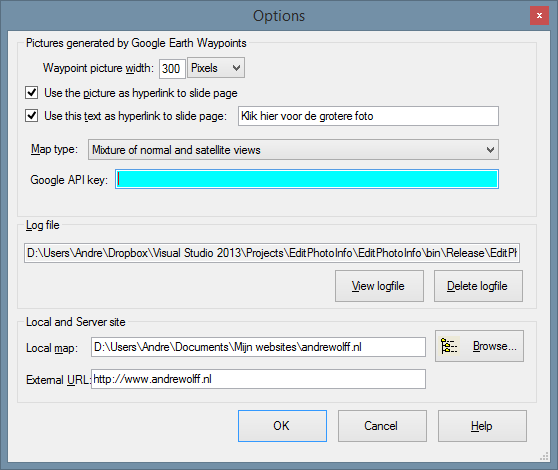
To make the Google Earth kml file in program EditPhotoInfo, open that program and click on the Options button in the upper right corner:

The first panel allows you to set the properties of the map and of the picture shown the pop-up window you see if you click on a purple camera icon, see above.

The information in the panel 'Local and Server site' is used to create the Google Earth kml-file. The 'Local map' is the folder on your PC with the start file of your web site. (the root directory). Use the Browse button to select this folder. The 'External URL:' is the Internet address of the corresponding folder on the server.

Close the Options window and click the 'Open' button in the main window and browse to one of the photos in the jAlbum Image directory. Next check in panel that says 'Google Earth kml-file' the check-box to use photos of the website.

Click now on the 'Make file' button and browse to the slides directory of the album and double-click on one of the images. A Google Earth file map.kml is made in the jAlbum output directory. 

To open that file  in Google Earth,  click on the 'Waypoints' button and you see the locations of your photos in Google Earth. 

After the album with the kml-file has been uploaded, you can click on a purple camera icon  to open a pop-up window with the photo. Click here  to see an example. The name of the folder for the waypoints can be entered behind 'Waypoints map name:'. 

If you have a  GPS track log file, you can also display it in Google Earth and save it in the same folder as the waypoints file. The combined result can be saved via 'Save Place as' as map.kml file. Click here to see an example in Google Earth and click here to see the same example in Google Maps and click here to see the map made with the Slide Show 4 Mapp.htt template, which uses the Google Maps Javascript API.

Click here  to download and install newest version of the Slide Show 4 skin and click here to open the Slide Show 4 skin manual.